Persistent Streams
1. RDAF Platform's persistent streams
RDAF supports ingesting, processing, consuming data at scale for different use cases such as AIOps, Asset Intelligence, Log Intelligence solutions. Additionally, it deliver the processed data to numerous destinations such as Data lakes, Data Warehousing, ITSM, CMDB, Collaboration, Log management tools and more.
It supports streaming the data such as Metrics, Logs, Events, Traces & Asset Inventory which is processed through RDAF's NATs or Kafka messaging service. By default, the streaming data is ingested, processed and consumed through NATs messaging service which holds the data in-memory during the transit, however, if the data need to be protected against system crashes or restarts, RDAF supports writing the streamed data to disk through persistent stream feature. If the in-transit data also need to be protected, Kafka based persistent stream can be used.
Streamed data is persisted in index store (database) which is consumed by many features or usecases. Below are some of the features or usecases (not limited to) which leverages the persistent streams.
- Alerts / Incidents / Ticketing
- Data Enrichment
- Change Events from ITSM
- Metrics, Logs, Events (Timeseries)
- Asset Inventory and Topology
- Regression, Anomaly Detection & Dynamic Thresholds
- Analytics (Dashboards)
- Others (Custom Usecases)
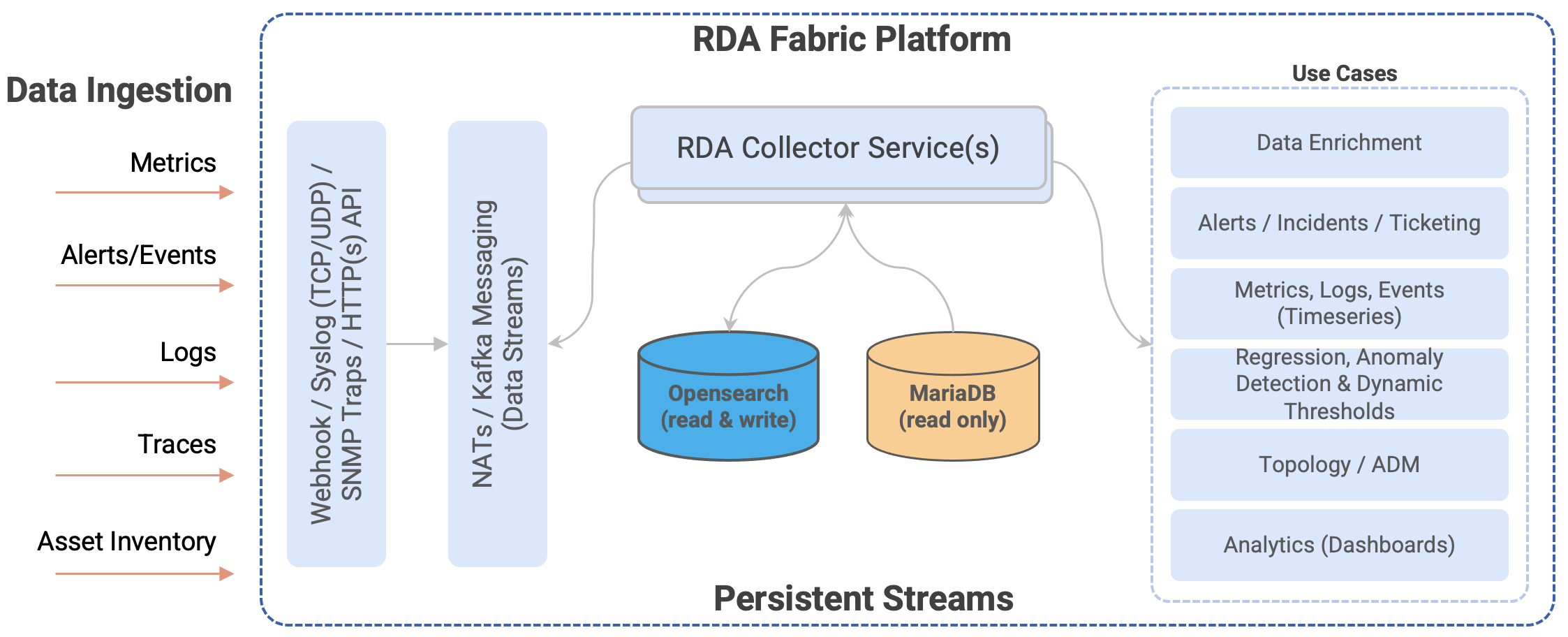
Persistent streams can be managed through rdac CLI or through RDAF UI portal. By default, RDAF's applications such as OIA (AIOps: Operations Intelligence and Analytics) and AIA (Asset Intelligence and Analytics) comes with pre-created persistent streams.
Additional to system provided persistent streams, users can create new persistent streams to ingest any data for analytics or for any user's specific custom use cases.
Warning
Please do not modify or delete system provided persistent streams. Contact CloudFabrix technical support for any assistance (support@cloudfabrix.com) around system provided ones.
2. Manage persistent stream
Persistent streams can be managed through RDAF UI portal or using rdac CLI.
2.1 Add
Add persistent stream through UI
Login into RDAF UI portal and go to Main Menu --> Configuration --> RDA Administration --> Persistent Streams
Click on Add button to create a new persistent stream
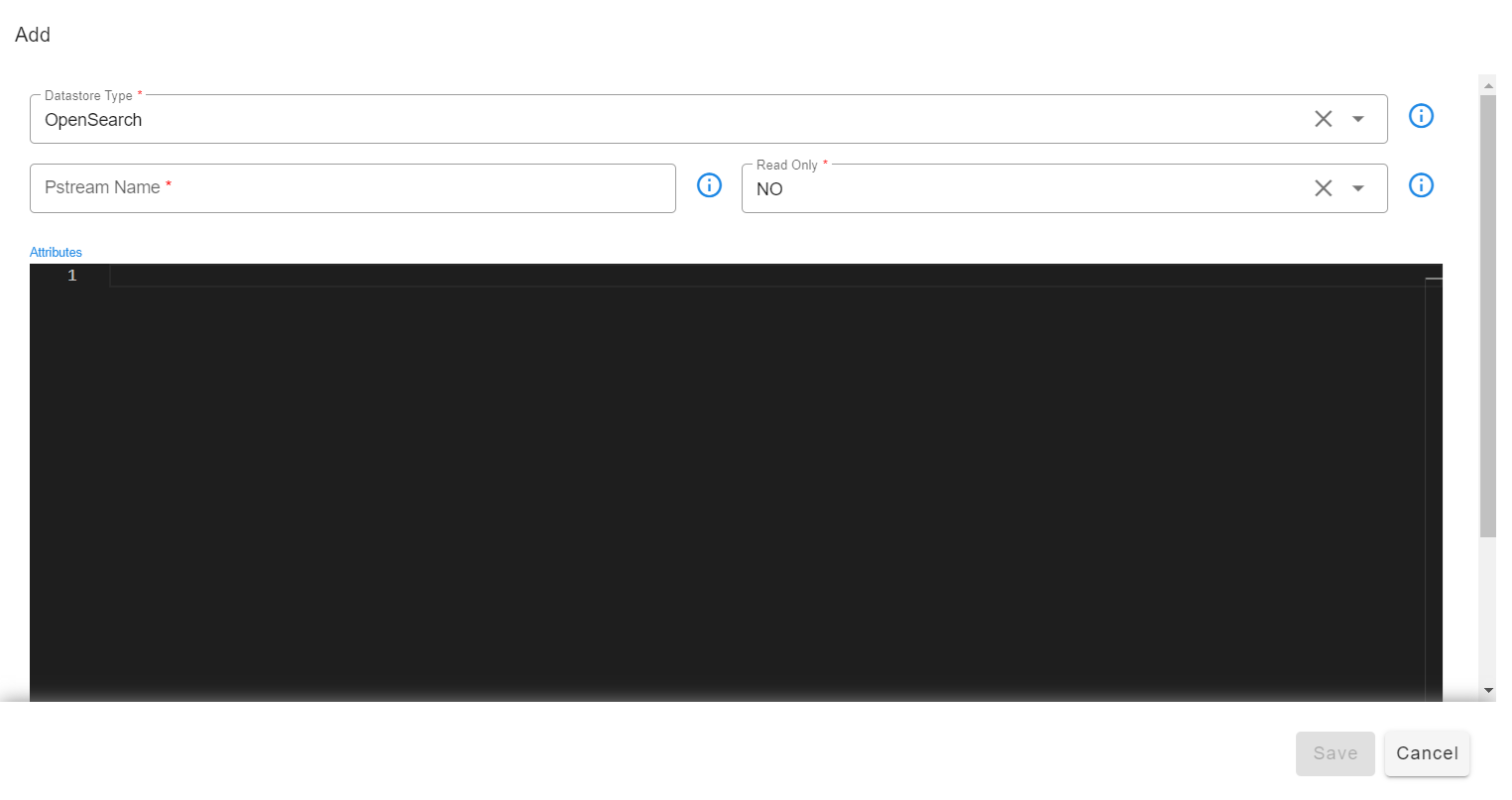
Select Datastore type and Enter persistent stream name.
Tip
When specifying a name for a persistent stream, please use alphanumeric characters. If necessary special characters such as - (dash) or _ (underscore) can be used.
Datastore Types:
- OpenSearch: Opensearch Index store database (support both read and write operations)
- SQL: MariaDB database (support only read operations)
Adding OpenSearch based Persistent Stream:
Adding External OpenSearch based Persistent Stream:
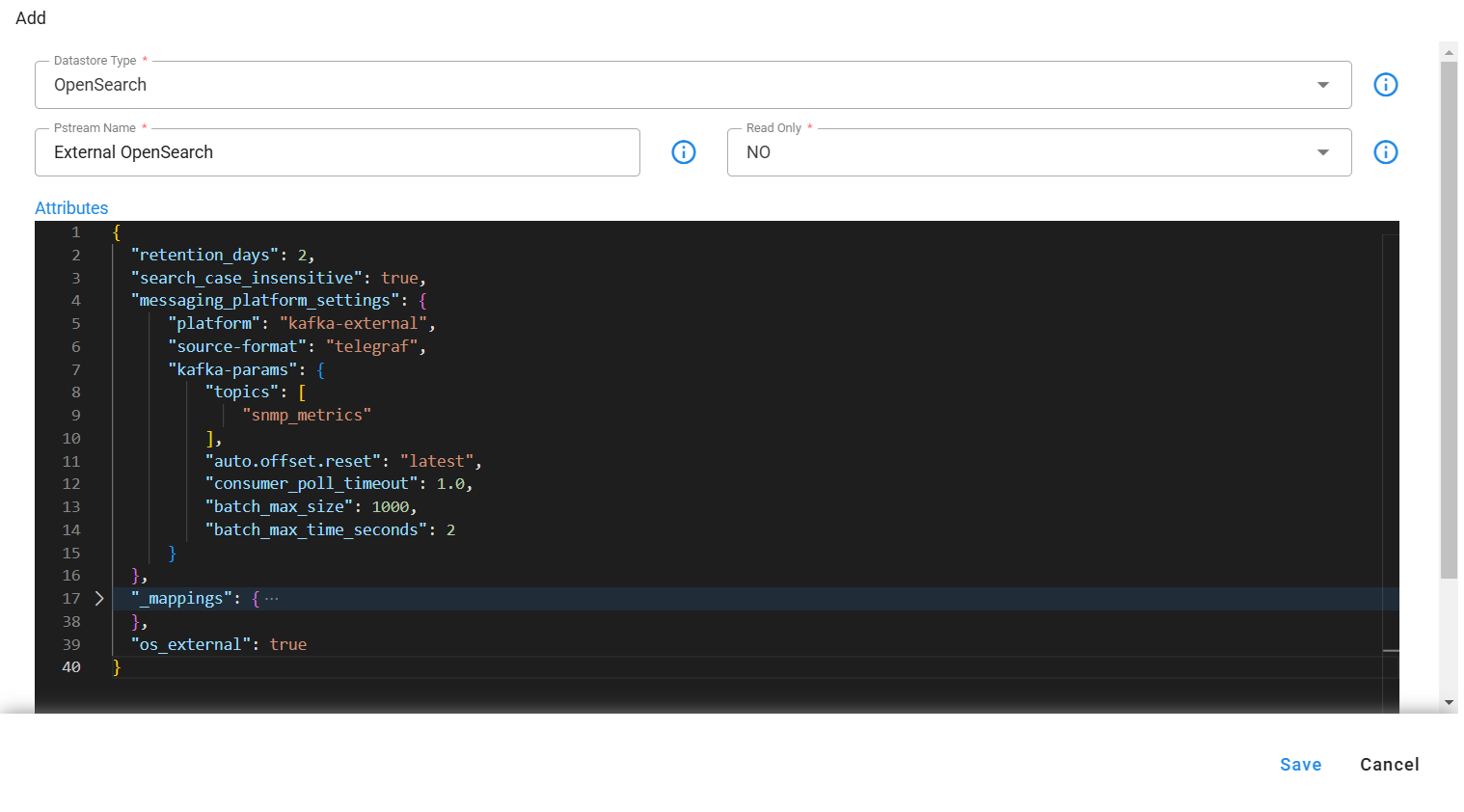
Attributes are settings for persistent streams (optional) and the supported format is in JSON
Below are supported attributes for OpenSearch based persistent streams.
Attribute Name |
Mandatory | Description |
|---|---|---|
retention_days |
no | Specify the data retention time in days (e.g., 7, 10, 15, etc.). When specified, data older than the specified number of days will be permanently deleted. Older data is determined by the timestamp field. Default timestamp field of a persistent stream can be overridden by mapping to another valid timestamp (ISO datetime format) field from the ingested data. |
retention_purge_extra_filter |
no | Specify the CFXQL filter that will be applied to filter the data while deleting older data, based on the retention_days parameter setting. |
timestamp |
no | Map a valid timestamp (in ISO datetime format) field (e.g., created_time, alert_time etc.) from the ingested data to override the default timestamp field. By default, every persistent stream will have a timestamp (in UTC) field that represents the time when the data was ingested. This setting is primarily used for timestamp filter when visualizing the data in Dashboards and for deleting the older data when retention_days is set. |
unique_keys |
no | Specify array of field names (e.g., ["name", "age", "location"] etc.) from the ingested data which will be used to identify uniqueness of each record. Use this option to configure the persistent stream in update mode. By default, persistent stream is configured in append mode. |
search_case_insensitive |
no | This option is used when searching data within the persistent stream. Please specify true or false. When enabled (set to true), the specified text in the filter is searched without case-sensitivity. By default, it is set to true |
default_values |
no | Specify a list of fields for which a default value (e.g., 'Not Available' or 'Not Applicable,' etc.) should be set when their value is empty for some of the records before ingesting into the persistent stream. |
messaging_platform_settings |
no | This setting is only applicable, if you need to use the Kafka messaging service. Configure this setting to specify one or more topics (of RDA Fabric platform or from an external Kafka system) from which to read and ingest the data. By default, persistent streams use the NATs messaging service to read and ingest the data. (Note: When external Kafka system to be used, please configure credential_name parameter to specify the credential name which was created under Configuration --> RDA Integrations) |
auto_expand |
no | Specify array of field names (e.g., ["names", "locations"] etc.) from the ingested data when their value is in JSON format. Extract, flatten and add them as new fields. |
drop_columns |
no | Specify array of field names (e.g., ["tags", "type"] etc.) from the ingested data which need to be dropped before ingesting the data into a persistent stream. |
_settings |
no | Specify index level settings such as number_of_shards, number_of_replicas, refresh_interval etc. Please note that, these settings will be applied only during persistent stream creation time. |
_mappings |
no | Specify index level field mappings to define data types for each field (e.g., double, long, boolean, text, keyword, ip, date etc.). By default, each field's data type is automatically determined based on the data presented in the first record from the ingested data. If the field's data type is not determined, it will be treated as a Text (String). Please note that, these settings will be applied only during persistent stream creation time. |
os_external |
no | If os_external is set to True, the index will be created on an external OpenSearch. If set to False, the index will be created on the platform's OpenSearch. |
| Below is an example for persistent stream configuration settings when all of the above mentioned options are used. |
Tip
Please note that all of the below listed configuration settings are NOT applicable for every persistent stream. Please configure only the applicable settings based on persistent stream use case requirement.
{
    "retention_days": 30,
    "retention_purge_extra_filter": "asset_status = 'Purge'",
    "search_case_insensitive": true,
    "timestamp": "collection_timestamp",
    "unique_keys": [
        "a_id"
    ],
    "drop_columns": [
        "correlationparent"
    ],
    "default_values": {
        "a_source_systemname": "Not Available",
        "a_status": "Not Available",
        "a_severity": "Not Available"
    },
    "auto_expand": [
        "payload"
    ],
    "messaging_platform_settings": {
        "platform": "kafka",
        "kafka-params": {
            "topics": [
                "ab12ern1a94mq.ingested-alerts"
            ],
            "auto.offset.reset": "latest",
            "batch_max_size": 100,
            "batch_max_time_seconds": 2
        }
    },
    "_settings": {
        "number_of_shards": 3,
        "number_of_replicas": 1,
        "refresh_interval": "1s"
    },
    "_mappings": {
        "properties": {
            "salary": {
                "type": "double"
            },
            "employee_name": {
                "type": "text",
                "fields": {
                  "keyword": {
                    "type": "keyword"
                  }
                }
            }
        }
    }
}
Adding SQL based Persistent Stream:
Note
Currently, SQL based persistent streams are supported only using RDA Fabric platform's mariadb database. It supports read-only operations querying the data from the configured database and table. For any assistance around this feature, please contact CloudFabrix technical support (support@cloudfabrix.com)
While adding the SQL based persistent stream, please configure the below.
- Datastore Type: Select SQL
- Database Name: Enter database name from the RDAF platform's database (Note: Only databases that have the tenant id as pre-fix in their name are supported)
- Table Name: Enter database table name or view name.
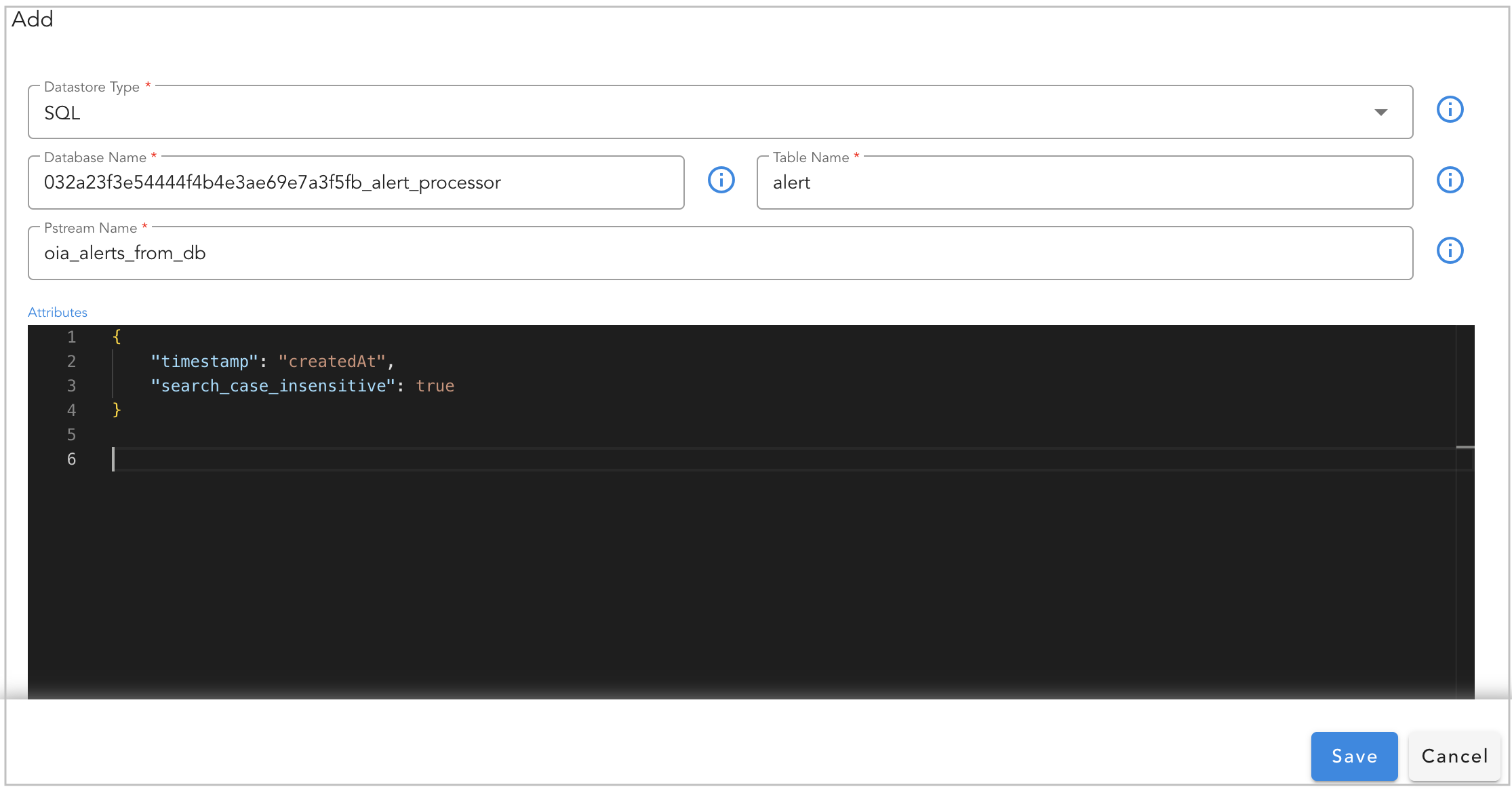
Attributes are settings for persistent streams (optional) and the supported format is in JSON
Below are supported attributes for SQL based persistent streams.
Attribute Name |
Mandatory | Description |
|---|---|---|
timestamp |
no | Map a valid timestamp (in ISO datetime format) field (e.g., created_time, alert_time etc.) from the database table. This setting is primarily used for timestamp filter when visualizing the data in Dashboards. |
2.1.1 Append vs Update
When a persistent stream is created with OpenSearch as a Datastore Type, it operates in either of the below two modes.
- Append: Keep appending every data row as a new record (e.g., Timeseries). This is a default mode.
- Update: Updates the existing data row using the list of filed(s) (as primary key(s)) configured under
unique_keyssetting.
{
    "retention_days": 30,
    "search_case_insensitive": true,
    "timestamp": "collection_timestamp",
    "unique_keys": [
        "field_name_1",
        "field_name_2"
    ]
}
2.1.2 Default value for Field(s)
If a field or fields do not exist in the ingested data record, you can add the default value for the field by configuring the default_values parameter.
In the example below, if the person_name and person_age fields do not exist in the ingested data record, default values of Not Available and 0 will be set for them, respectively.
{
    "retention_days": 30,
    "search_case_insensitive": true,
    "timestamp": "collection_timestamp",
    "default_values": {
    "person_name": "Not Available",
    "person_age": 0
    }
}
2.1.3 Computed Field(s)
While ingesting the data, if there's a need to create a new field based on the values of existing fields, the ingest_pipelines setting can be used.
In the following example, the perc_profit and profit fields will be automatically computed and created using the values of the existing sold_price and purchase_price fields, and they will be added to the ingested data record.
For each field, namely perc_profit and profit, configure the `script`` configuration block with the parameters below.
- description: Specify the purpose of this new field
- lang: Set it as painless
- source: Specify the computed formula used to derive the value based on the existing field's value.
- ignore_failure: Set it as true
{
    "retention_days": 30,
    "search_case_insensitive": true,
    "timestamp": "collection_timestamp",
    "ingest_pipeline": {
        "processors": [
            {
                "script": {
                    "description": "Profit Calculator",
                    "lang": "painless",
                    "source": "ctx['perc_profit'] = (ctx['sold_price'] - ctx['purchase_price'])*100/(ctx['purchase_price'])",
                    "ignore_failure": true
                }
            },
            {
                "script": {
                    "description": "Profit",
                    "lang": "painless",
                    "source": "ctx['profit'] = ctx['sold_price'] - ctx['purchase_price']",
                    "ignore_failure": true
                }
            }
        ]
    }
}
Tip
The ingest_pipelines setting leverages the native capability of the OpenSearch service. It's important to note that, for arithmetic computations, the field's data type should be either long or double.
2.1.4 Bounded Dataset
With this feature, the Pstream will be in sync with the selected dataset, i.e., any changes to the data in the dataset automatically get synced to the data in the Pstream. This Pstream is treated as a read-only stream, which means it cannot be written to in any other way.
-
Syncing the data from the dataset to the Pstream will make it easier to use for reporting and other purposes, such as when customers upload their device lists and other information as datasets.
-
This feature also allows multiple Pstreams to be associated with the same dataset, as each Pstream can have additional attributes such as computed columns and enriched information that could differentiate them.
-
If the associated dataset is deleted, the data in the Pstream is not deleted. But if the dataset with the same name is created again, it will automatically sync up with associated Pstreams.
Note
This feature isn't ideal for datasets that update very frequently, such as every few seconds.
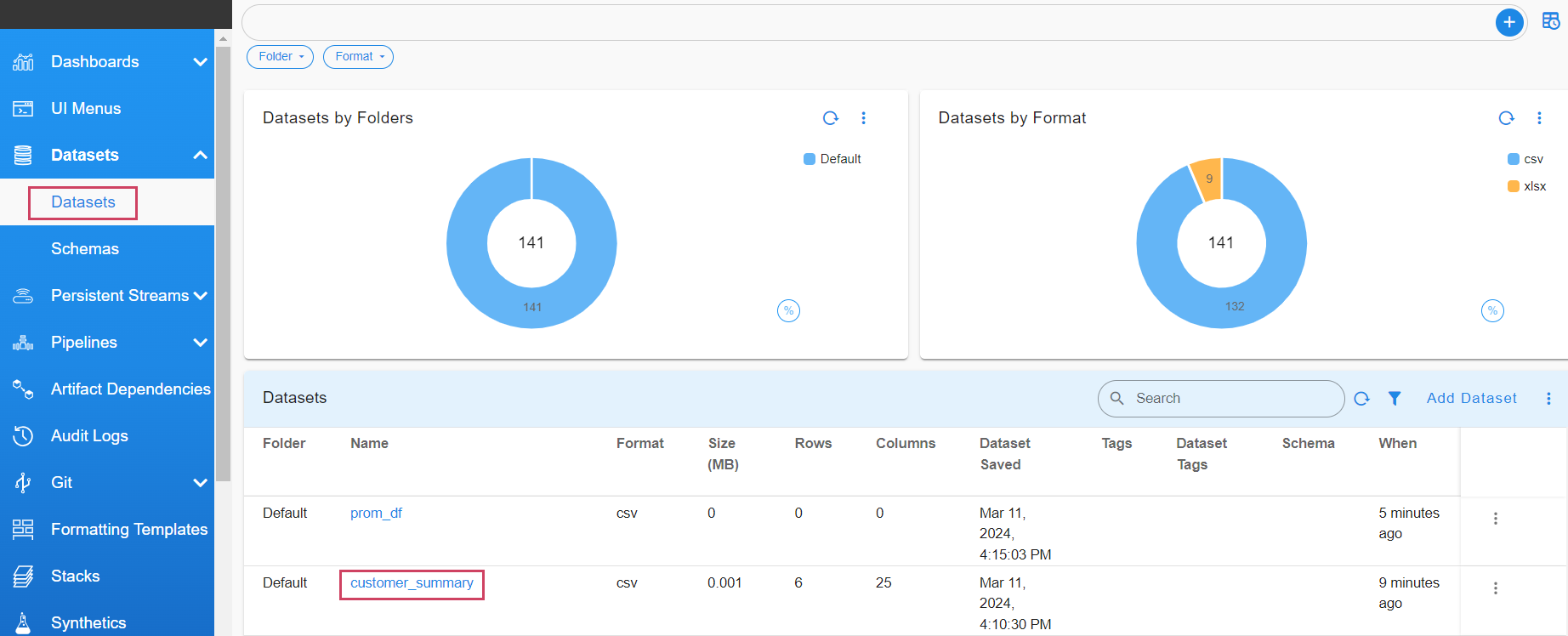
Go to Home -> Configuration -> RDA Administration -> Datasets -> Copy the Dataset Name
- Navigate to Dataset and copy the name of the dataset you wish to map to the Pstream. In this case, customer_summary is used as an example.
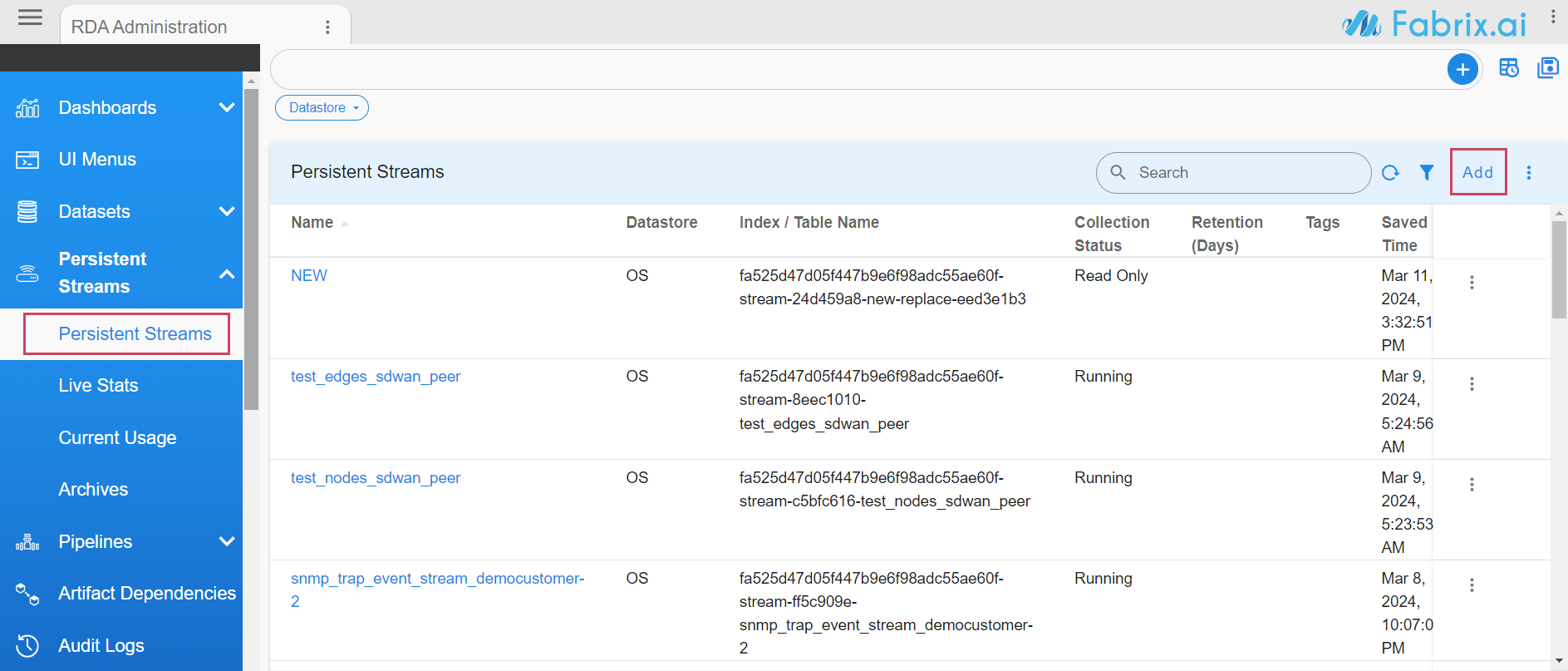
- Create a new Pstream associating it to a dataset.
Go to Home -> Configuration -> RDA Administration -> Persistent Streams -> Add
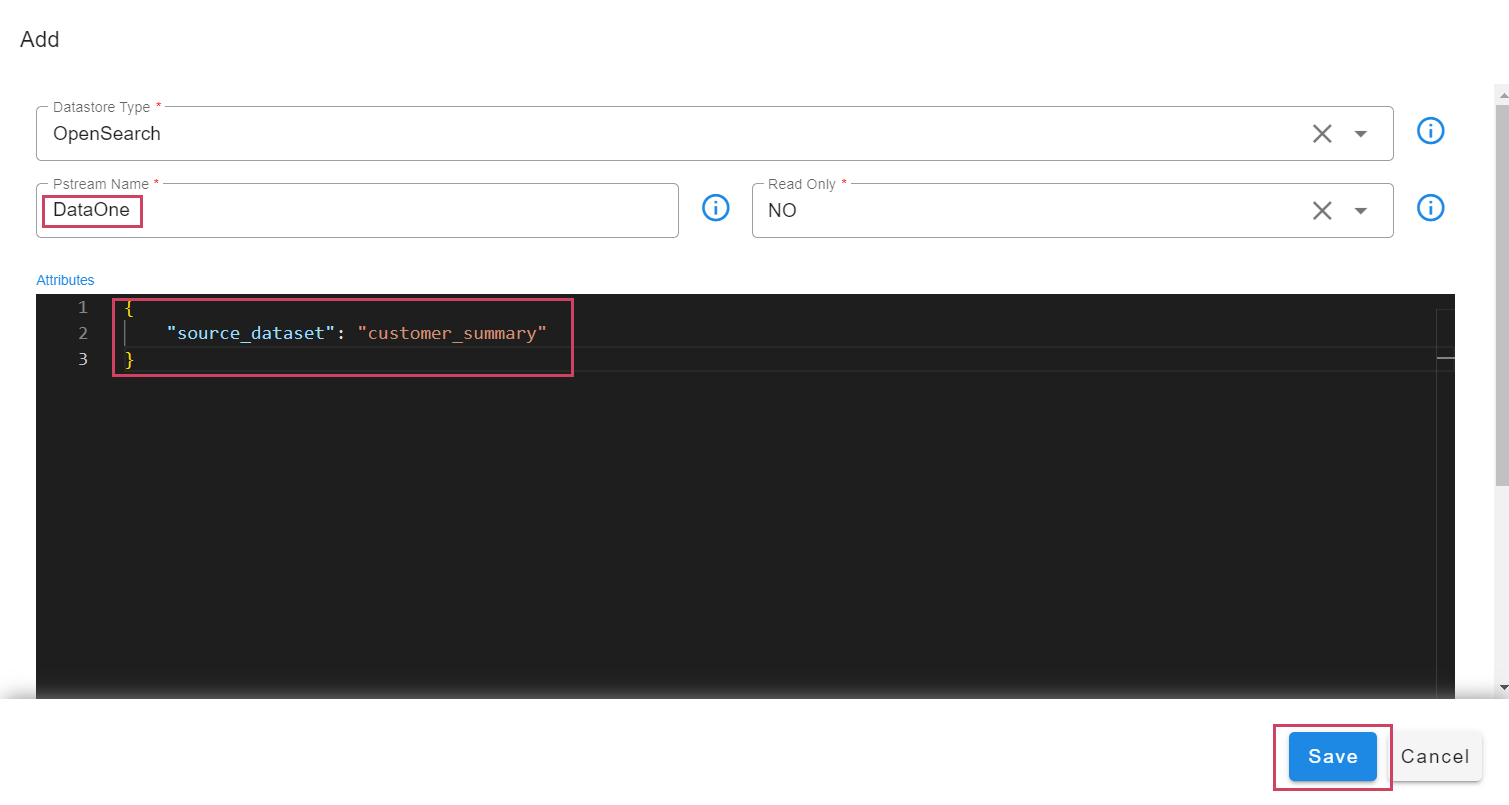
- When adding the Pstream, specify the attribute
source_datasetas shown below.
Warning
The addition of the source_dataset attribute to an already created Pstream is not supported..
Tip
By default, Pstreams are created in append mode unless the unique_keys attribute is defined, which causes the Pstream to write the data in update mode. In the example below, customerName is defined as the unique_key, which uses it as a primary key to maintain a unique record for each customer.
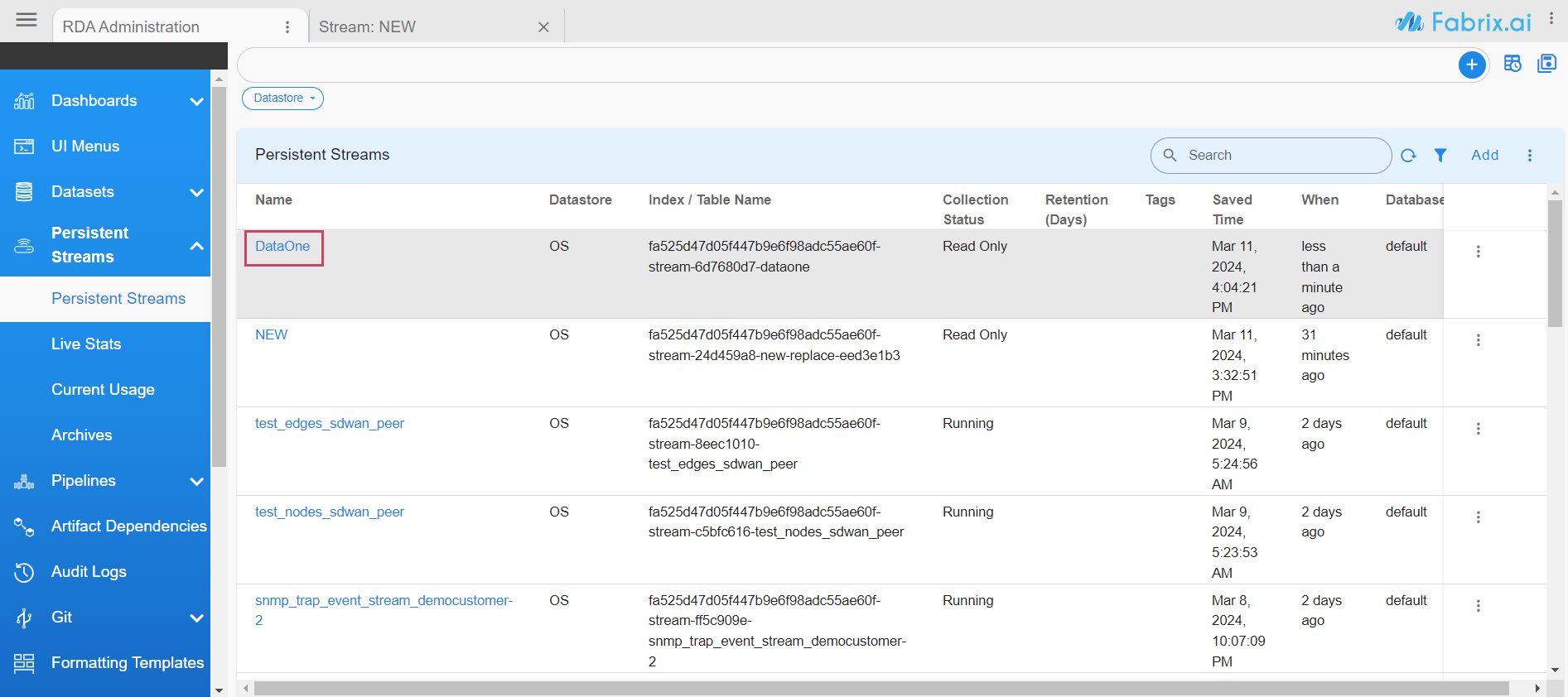
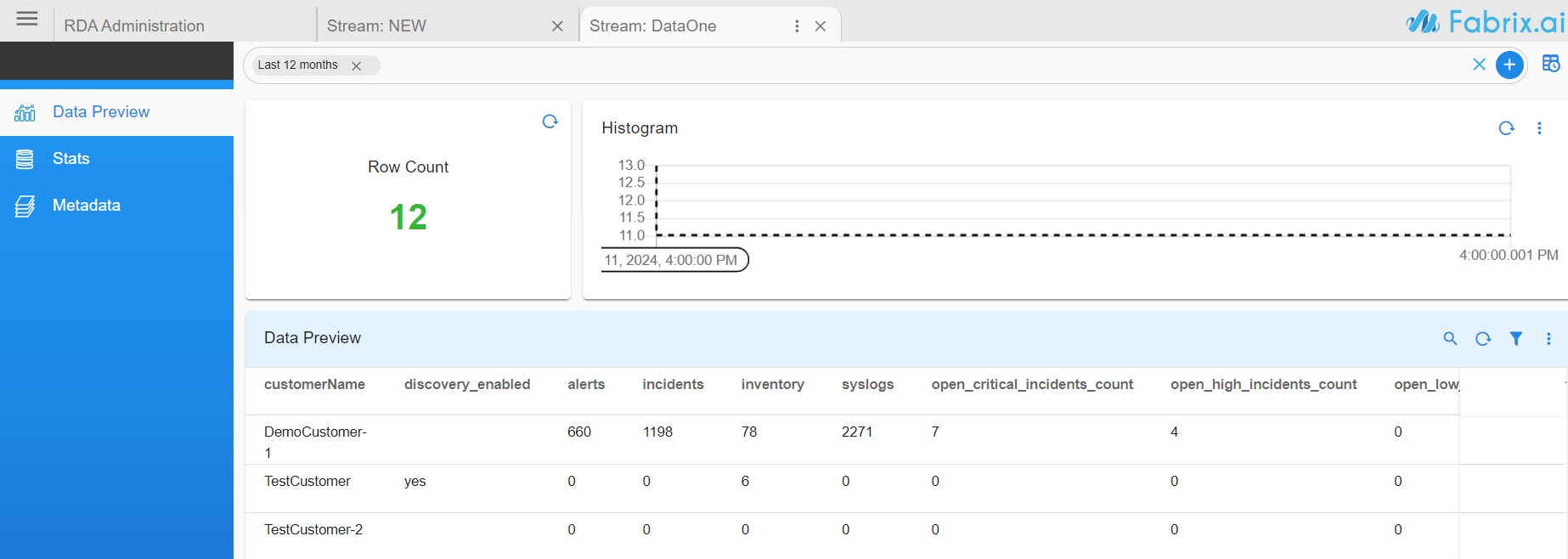
The user can see the Added Pstream that is bound to the Dataset in the below screenshot
The data in the dataset is also visible in the Pstream, as shown below.
2.1.5 Using Kafka Topics
By default, the persistent stream uses streams created out of the NATS messaging service. The RDA Fabric platform also provides Kafka messaging service, which can be used to protect in-transit data against application service outages on the consumption end. During a brief application service outage, Kafka retains unprocessed data on disk (subject to the retention time setting). Once the application service is restored and functional again, the retained data will be processed without any data loss.
In addition to the Kafka messaging service provided by the RDA Fabric platform, external Kafka messaging service is also supported. It can be used within the persistent stream configuration.
Using RDAF Platform's Kafka:
RDAF Platform's Kafka is used by @dn bots (also known as Data Network) to publish and receive events within the platform. However, It can also be used to receive events from external tools.
In the example below, a persistent stream is configured to use a Kafka topic, itsm_snow_incoming_updates, created using the @dn:write-stream bot.
{
    "retention_days": 30,
    "search_case_insensitive": true,
    "timestamp": "collection_timestamp",
    "messaging_platform_settings": {
        "platform": "kafka",
        "kafka-params": {
            "topics": [
                "itsm_snow_incoming_updates"
            ],
            "auto.offset.reset": "latest",
            "batch_max_size": 100,
            "batch_max_time_seconds": 2
        }
    }
}
Info
In messaging_platform_settings platform and kafka-params are the supported configurations
Parameter Name |
Description |
|---|---|
platform |
It supports 2 values kafka and kafka-external. kafka-external is used if external system publishes to RDA |
batch_max_size |
Maximum count of messages in a batch for processing. A batch is considered complete when this count is hit |
batch_max_time_seconds |
Specifies the maximum duration to wait for the batch_max_size to be met. If this duration elapses before the batch reaches the specified size, the batch is completed with the events accumulated up to that point. |
auto.offset.reset |
When a Kafka-backed pstream is started for the first time and the topic already exists with messages, it must determine where to begin reading from. By default, it starts from the earliest available message in the topic. The supported options are: earliest – start from the first message in the topic latest – start from the most recent message |
Tip
In the above example, platform parameter is set to kafka i.e. it uses Data Network feature of the platform to consume the events from the given Kafka topic. (Note: When using the Data Network, the internal naming format for Kafka topics is tenant_id.datanetwork.topic_name (e.g., 032a23f3e54444f4b4e3ae69e7a3f5fb.datanetwork.itsm_snow_incoming_updates))
Using RDAF platform's Kafka topic created for external tools:
In the example below, a persistent stream is configured to utilize a Kafka topic named production_application_events, created by an external tool using the RDAF platform's Kafka credentials for external tools.
- Configure the Persistent Stream with the below settings.
{
    "retention_days": 30,
    "search_case_insensitive": true,
    "timestamp": "collection_timestamp",
    "messaging_platform_settings": {
        "platform": "kafka-external",
        "kafka-params": {
            "topics": [
                "production_application_events"
            ],
            "auto.offset.reset": "latest",
            "batch_max_size": 100,
            "batch_max_time_seconds": 2
        }
    }
}
Tip
In the above example, platform parameter is set to kafka-external and when it is set, the internal naming format for Kafka external topics is tenant_id.external.topic_name (e.g., 032a23f3e54444f4b4e3ae69e7a3f5fb.external.production_application_events)
To publish the events from External tools into RDAF platform, the credentials for RDAF Platform's Kafka, can be found in the /opt/rdaf/rdaf.cfg configuration file. This file is located on the VM where the RDAF deployment CLI was executed to set up and configure the RDAF platform.
[kafka]
datadir = 192.168.125.45/kafka-logs
host = 192.168.125.45
external_user = 032a23f3e54444f4b4e3ae69e7a3f5fb.external
external_password = elJRdWpLVGU2ag==
The externl_password is in base64 encoded format and it need to be decoded to see the actual password using the command echo <external_password> | base64 -d
The Kafka topic for external tools will be automatically created (if it doesn't exist) when the external tool starts publishing events, subject to authentication validation.
Below is the sample configuration settings for external tools to publish the events to RDAF Platform's Kafka.
- Bootstrap Servers: RDAF Platform's Kafka node(s) IPs (comma separated values) with Kafka port 9093 (e.g., 192.168.10.10:9093 or 192.168.10.10:9093,192.168.10.11:9093,192.168.10.12:9093)
- Security Protocol: Set the value as
SASL_SSL - SASL Mechanism: Set the value as
SCRAM-SHA-256 - SASL Username: Enter SASL username created for external tools
- SASL Password: Enter SASL password created for external tools
- SSL CA Certificate: CA certificate from RDAF Platform, ca.pem file can be found under /opt/rdaf/cert/ca/ directory
- Topic name: Kafka topic name. The format should be
tenant_id.external.topic_name(e.g.,032a23f3e54444f4b4e3ae69e7a3f5fb.external.production_application_events) (Note: For tenant id, please go to Main Menu --> Configuration --> RDA Administration --> Network --> For Organization: [tenant_id])
Using External Kafka Cluster:
As a pre-requisite, external Kafka cluster's credentials need to be added under Main Menu --> Configuration --> RDA Integrations --> Credentials --> Click on Add, Select Secret-Type as kafka-v2 and enter the external Kafka cluster settings.
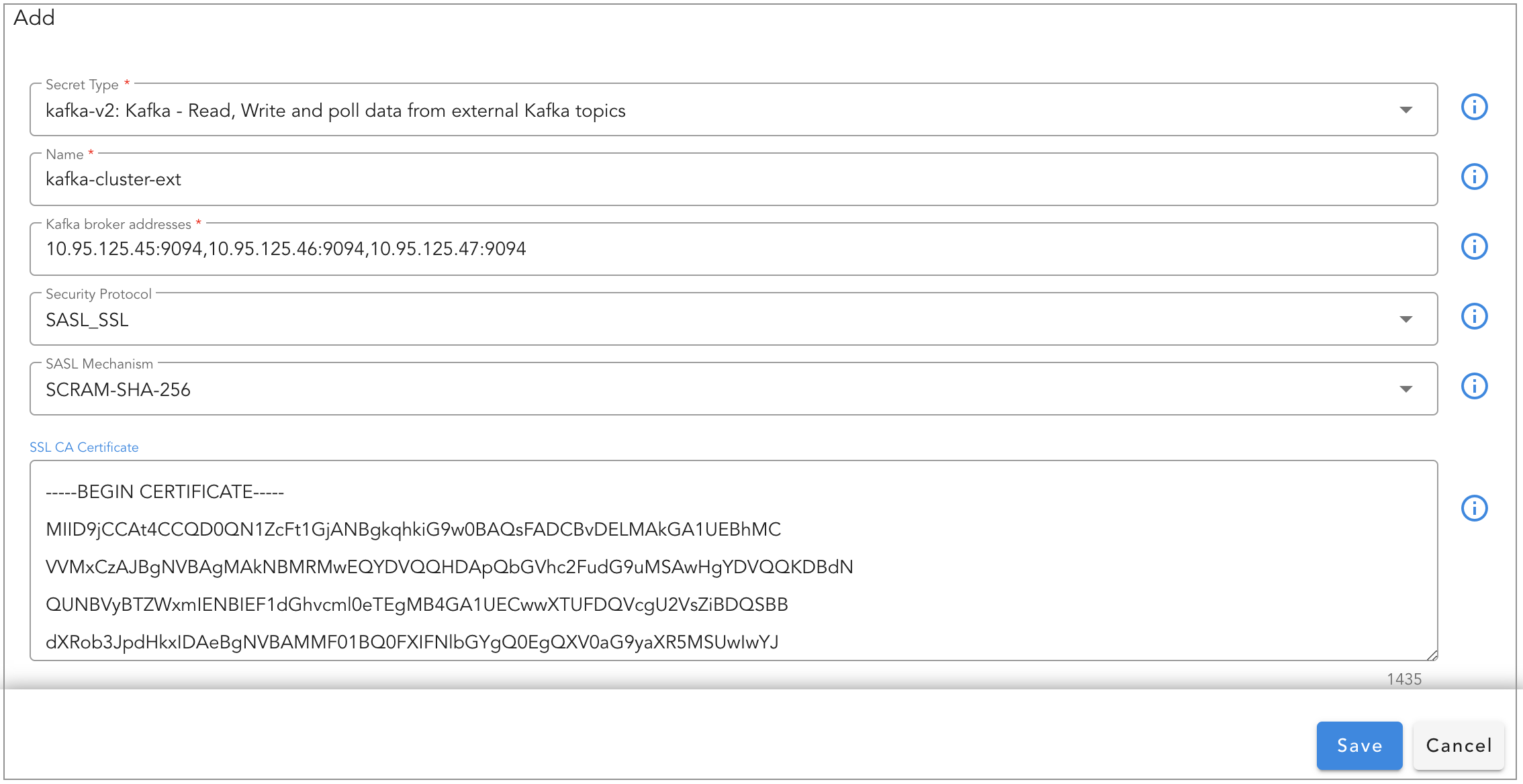
In the example below, a persistent stream is configured to use a external Kafka cluster's topic, metrics_data_lake
Tip
Configure credential_name setting with the credential name of the external Kafka cluster which was created as part of the above pre-requisite step.
{
    "retention_days": 30,
    "search_case_insensitive": true,
    "timestamp": "collection_timestamp",
    "messaging_platform_settings": {
        "platform": "kafka",
        "credential_name": "kafka-cluster-ext",
        "kafka-params": {
            "topics": [
                "metrics_data_lake"
            ],
            "auto.offset.reset": "latest",
            "batch_max_size": 100,
            "batch_max_time_seconds": 2
        }
    }
}
2.1.6 Using External Opensearch
By default, the persistent stream uses the RDAF platform's OpenSearch cluster to store data. To use an external OpenSearch cluster deployed for metrics, logs, and events, the following configuration parameter must be set in the Persistent Stream settings.
Note
Please ensure that the external OpenSearch cluster is deployed. To verify its deployment configuration, run the command below from the RDAF CLI VM.
Kubernetes:
Non-Kubernetes:
2.2 Dashboard
View persistent stream through UI
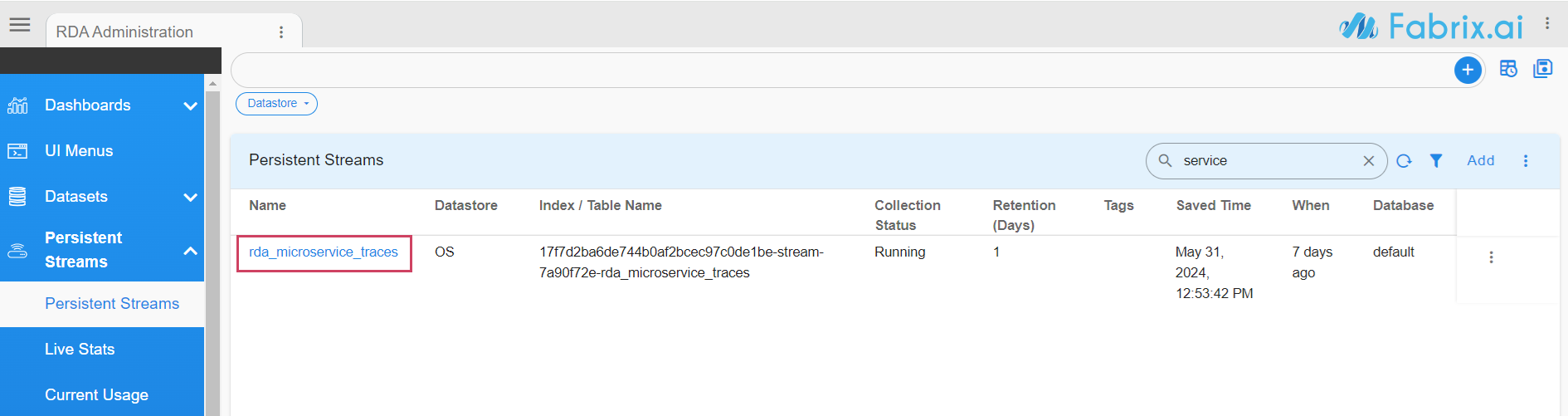
Login into RDAF UI portal and go to Main Menu --> Configuration --> RDA Administration --> Persistent Streams --> Click on the Persistent Stream Here in the below screenshot rda_microservice_traces Persistent Stream is selected to view the data.
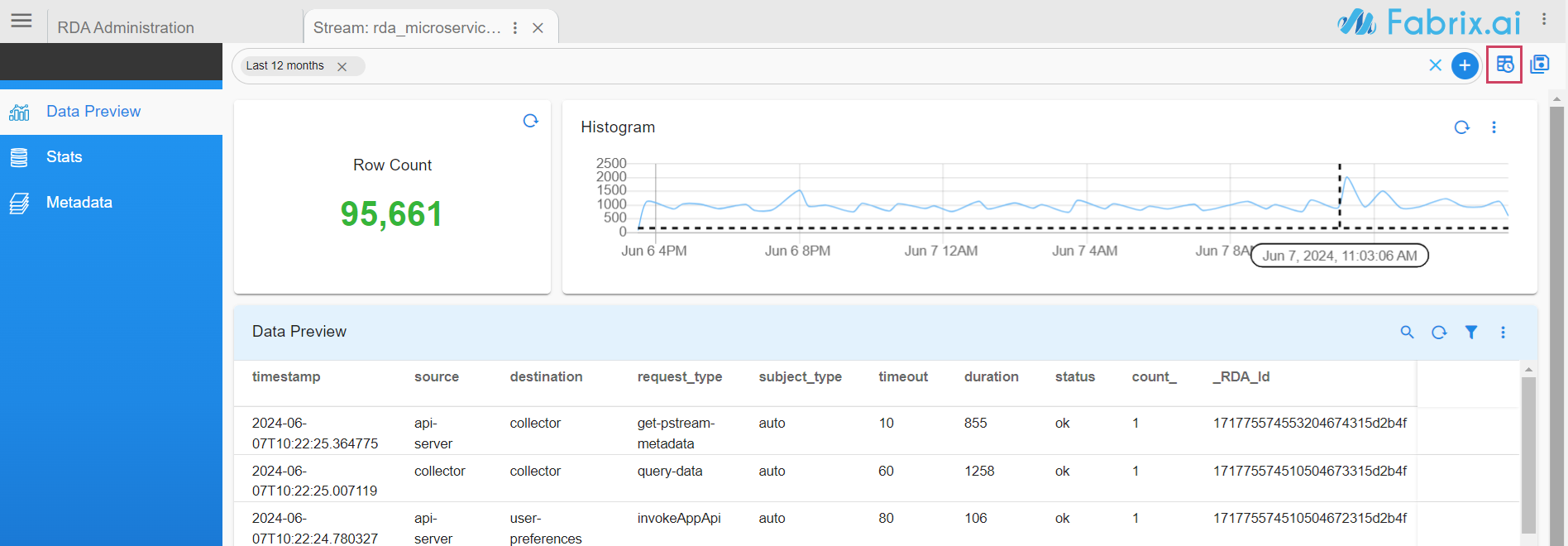
Data Preview: In this view, it presents all the ingested data into the persistent stream. It provides a filter bar along with a quick time filter highlighted in the top right side using which data can be filtered to validate the ingested data.
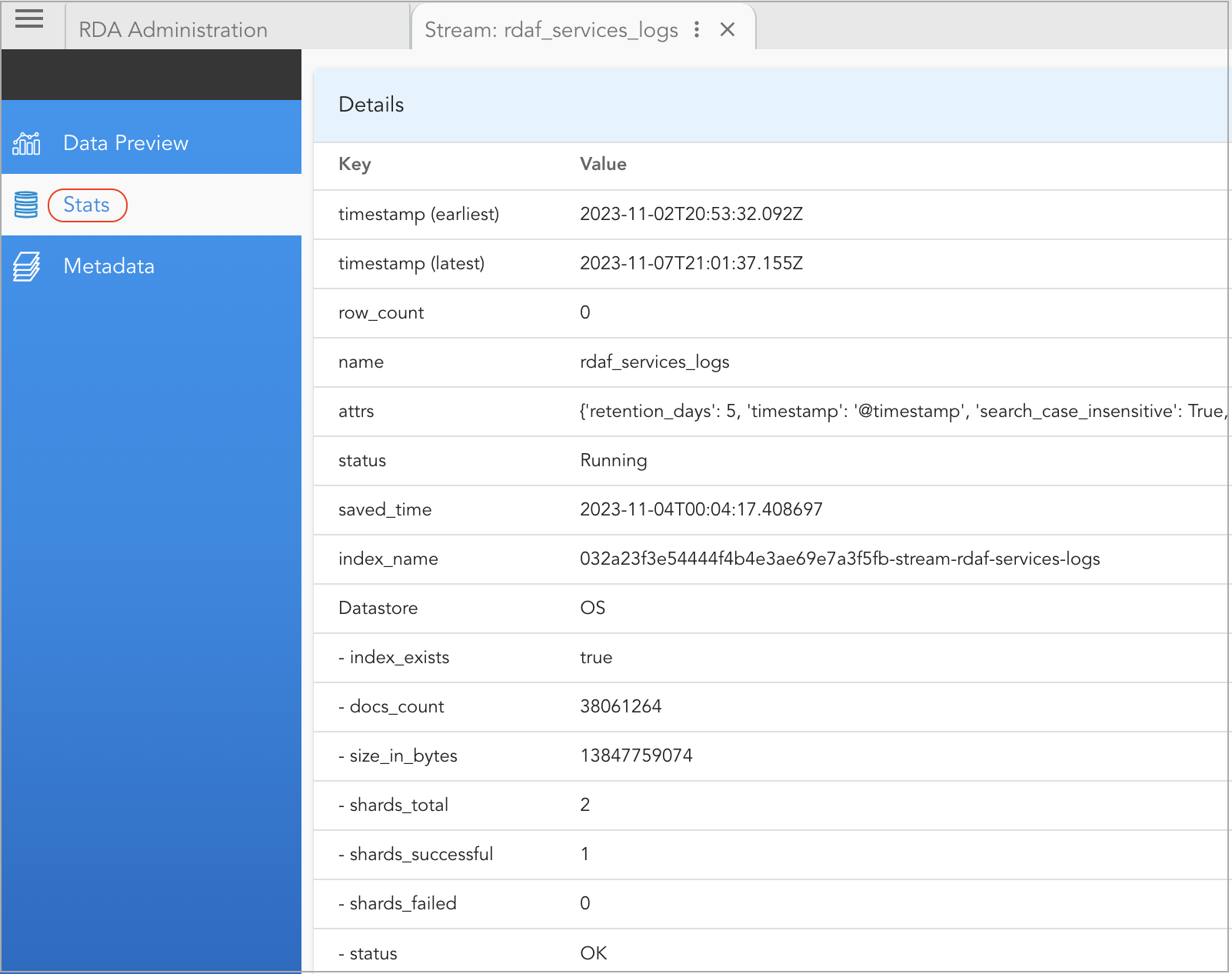
Stats: It provides details about the configuration, usage, and health statistics of the persistent stream, including but not limited to the following:
- status
- docs_count
- index_name
- size_in_bytes
- shards_total
- shards_successful
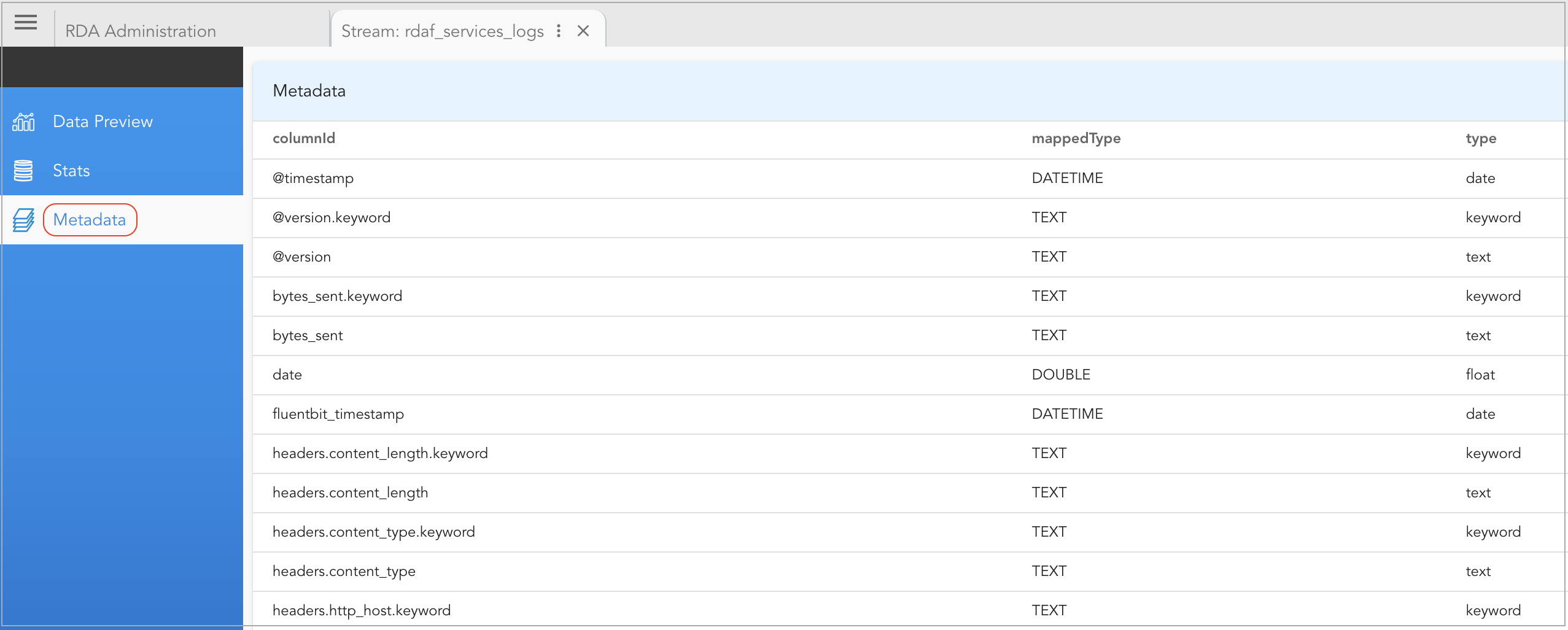
Metadata: It provides details about the schema of the persistent stream.
2.3 Edit
Edit persistent stream through UI
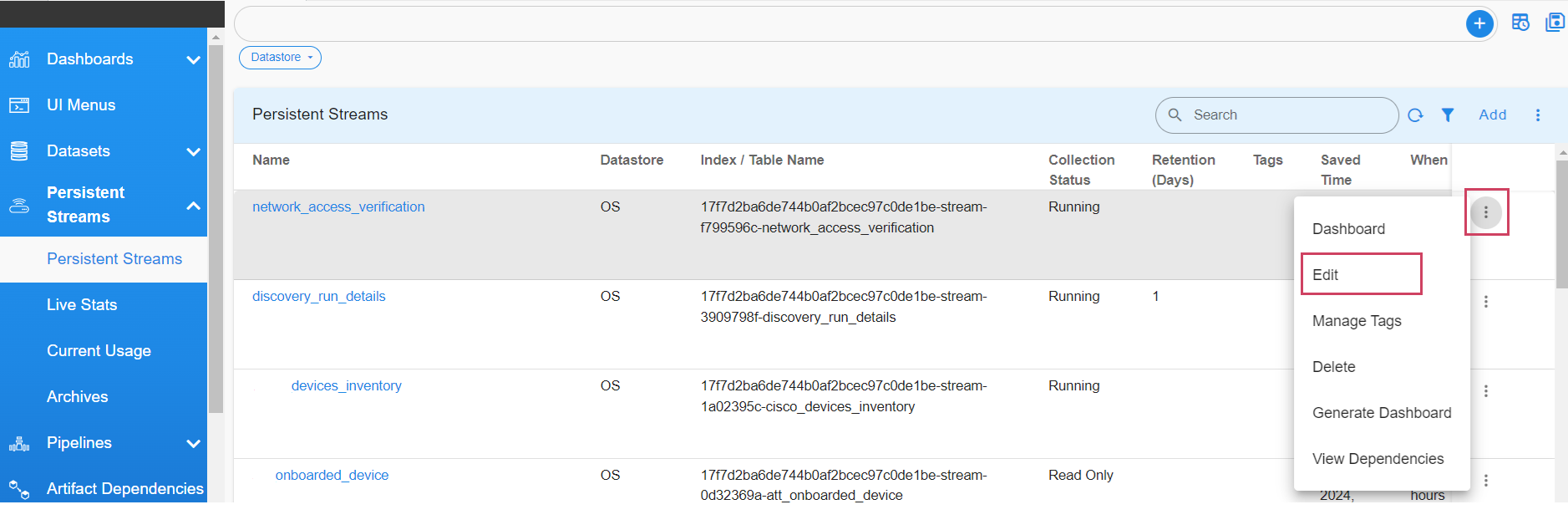
Login into RDAF UI portal and go to Main Menu --> Configuration --> RDA Administration --> Persistent Streams --> Select the Edit Action as shown in the screenshot below
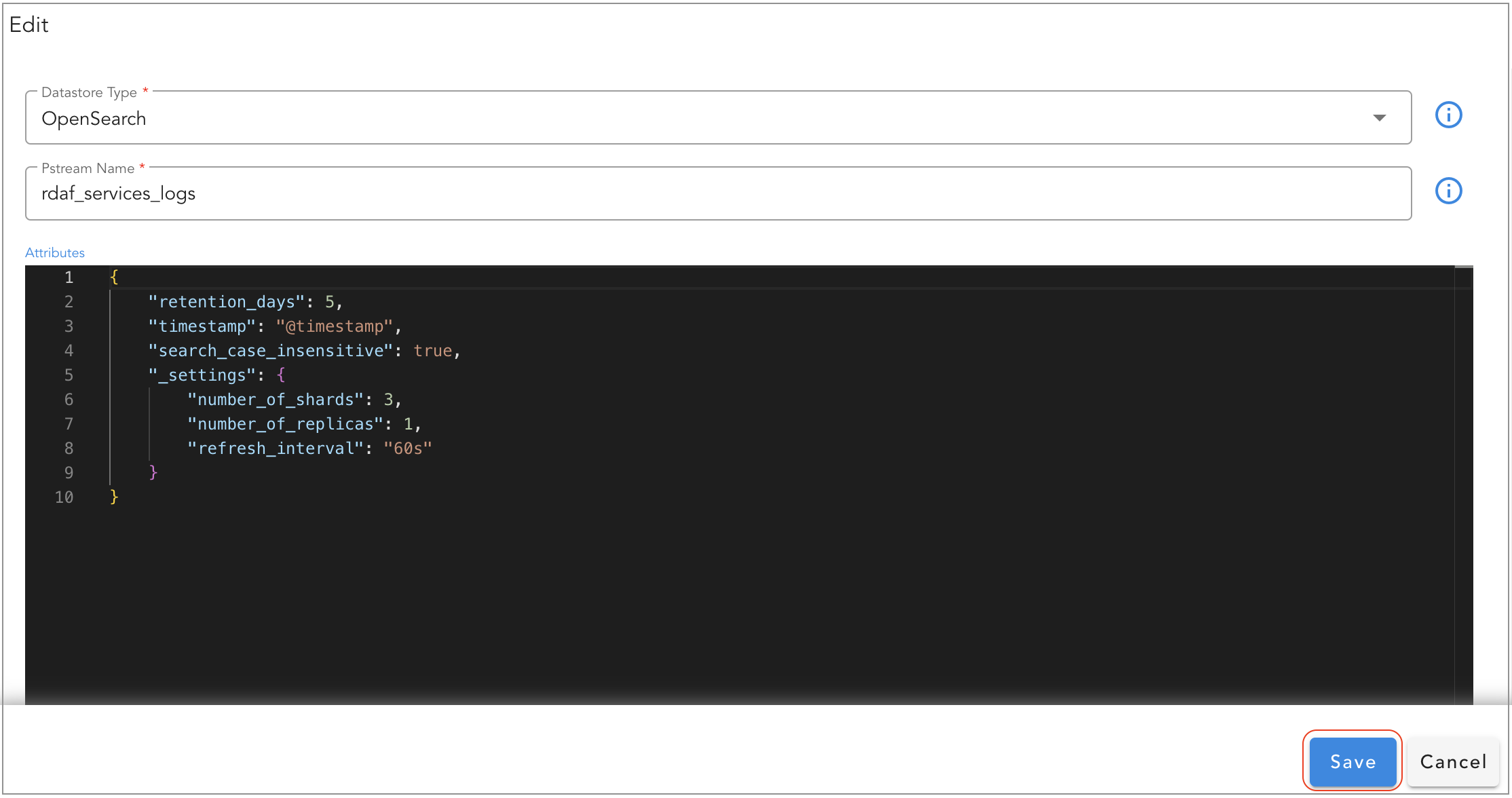
Edit operation will allow to add / modify the settings of the persistent stream.
Note
Please note that, some of the settings are applied only during persistent stream creation time. Please refer attribute settings table for more information.
2.4 Delete
Delete persistent stream through UI
Login into RDAF UI portal and go to Main Menu --> Configuration --> RDA Administration --> Persistent Streams --> From persistent stream menu, select Delete option.
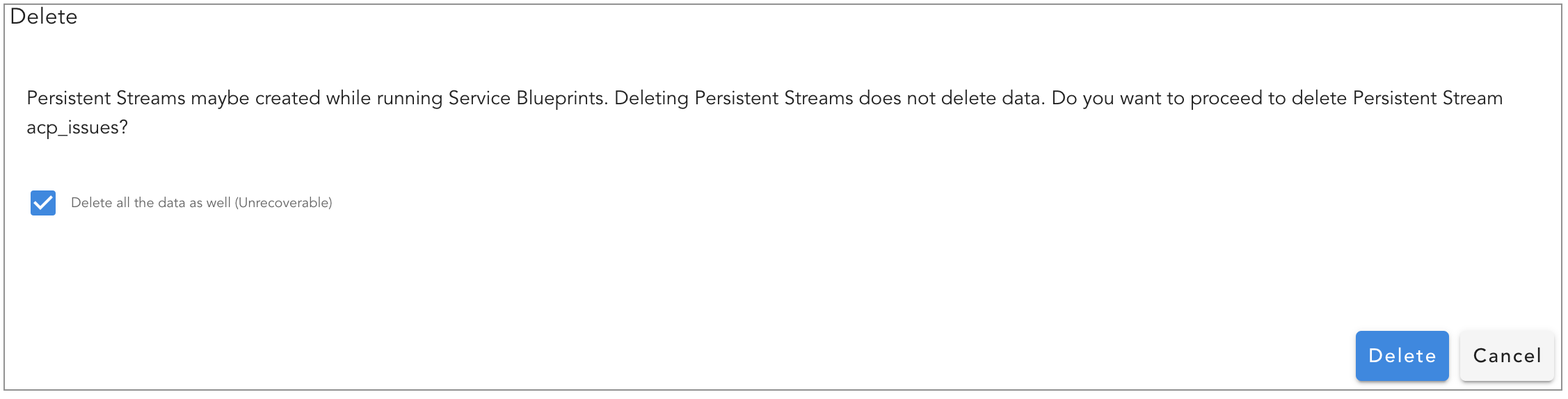
When the persistent stream is deleted without selecting Delete all the data as well option, it will delete only the persistent stream configuration object and it will not delete the index from back-end OpenSearch.
If a new persistent stream is re-created with the same name as before, it will re-use the same index that was not deleted.
To delete the persistent stream along with it's data stored in the Opensearch index, select Delete all the data as well option.
Danger
Deleting a persistent stream with Delete all the data as well option is a non-reversible operation as it will delete the data permanently.
3. Support for Index State Management Based PStreams
Index State Management (ISM) allows user to define policies that automatically handle index rollovers or deletions to fit users use case. These can be automated based on changes in the index age, index size, or number of documents.
Note
-
ISM policy settings for pstreams is designed specifically for time-series data—such as metrics, logs, traces, and events that is ingested in an append-only mode. In this configuration, new data is continuously added, and older data is managed through index rollover and retention policies.
-
ISM policies are NOT suitable for pstreams that are created in update mode using the
unique_keysparameter, since those rely on data record updates and replacements rather than purely append-only writes.
3.1 Rollover And Delete
The most common policy is to roll over indices and subsequently delete them.
Below is an example demonstrating how to use the 'rollover' and 'delete' actions in your ISM policy:
{
  "ism": {
    "rollover": {
      "min_index_age": "1d"
    },
    "delete": {
      "min_index_age": "7d"
    },
    "index_settings": {
     "index.refresh_interval": "60s"
    },
    "index_mappings": {
      "properties": {
        "timestamp": {
          "type": "date"
        },
        "metric_value": {
          "type": "double"
        }
      }
    }
  }
}
- For rollover and delete, user can use
Parameter Name |
Description |
|---|---|
min_index_age |
The minimum age required to roll over the index. Index age is the time between its creation and the present. Supported units are d (days), h (hours), m (minutes). Example: 5d or 7h or 5m |
min_doc_count |
The minimum number of documents required to roll over the index. Ex: 100000 |
min_size |
The minimum size of the total primary shard storage. Example: 20gb or 5mb |
User can also use multiple as follows which means if either condition is met, it will rollover.
Note
Setting multiple for delete is not supported. It will result in ISM policy failure.
Optionally via index_settings and index_mappings User can add/update the default index settings or mappings that exists in the template.
3.2 Rollover, Close and Delete
-
Closed indexes stay stored on disk but do not use CPU or memory resources. They cannot be read from, written to, or searched. Closing an index is useful when you want to keep the data for future reference without actively searching it, especially if your data nodes have enough disk space. If you need to search the data later, reopening a closed index is easier than restoring it from a snapshot.
-
Below is an example demonstrating how to use the 'close' option in your ISM policy:
{
    "ism": {
        "rollover": {
            "min_size": "60gb",
            "min_index_age": "7d"
        },
        "close": {
            "min_index_age": "30d"
        },
        "delete": {
            "min_index_age": "90d"
        }
    }
}
Note
To select the 'close' option within an ISM policy, you must specify all three actions: 'rollover,' 'close,' and 'delete', as demonstrated in the example policy.
3.2.1 Explanation of ISM Setting
-
Rollover Action
- Triggers a rollover when an index reaches 60GB in size OR is 7 days old (whichever occurs first).
- Creates a new index, and subsequent writes go to this new index.
- Transitions to the next stage after rollover.
-
Close Action
- When the rolled-over index is 30 days old, it is closed to reduce resource usage.
- Closed indices are not searchable until they are reopened.
- Transitions to the next stage after closing.
-
Delete Action
- Deletes the closed index after it reaches 90 days old.
3.2.2 Enhanced ISM Details Page
For ISM-based PStreams, the ISM Details page has been improved to
-
Show more detailed information about index states
-
Provide easy options to Re-open, Close, or Delete any of the rolled-over indexes directly from the interface
3.2.3 Actions for Open Indices
1) The "Write Index" setting is set to false for the rolled-over indices, ensuring that no new data is written to these closed indexes.
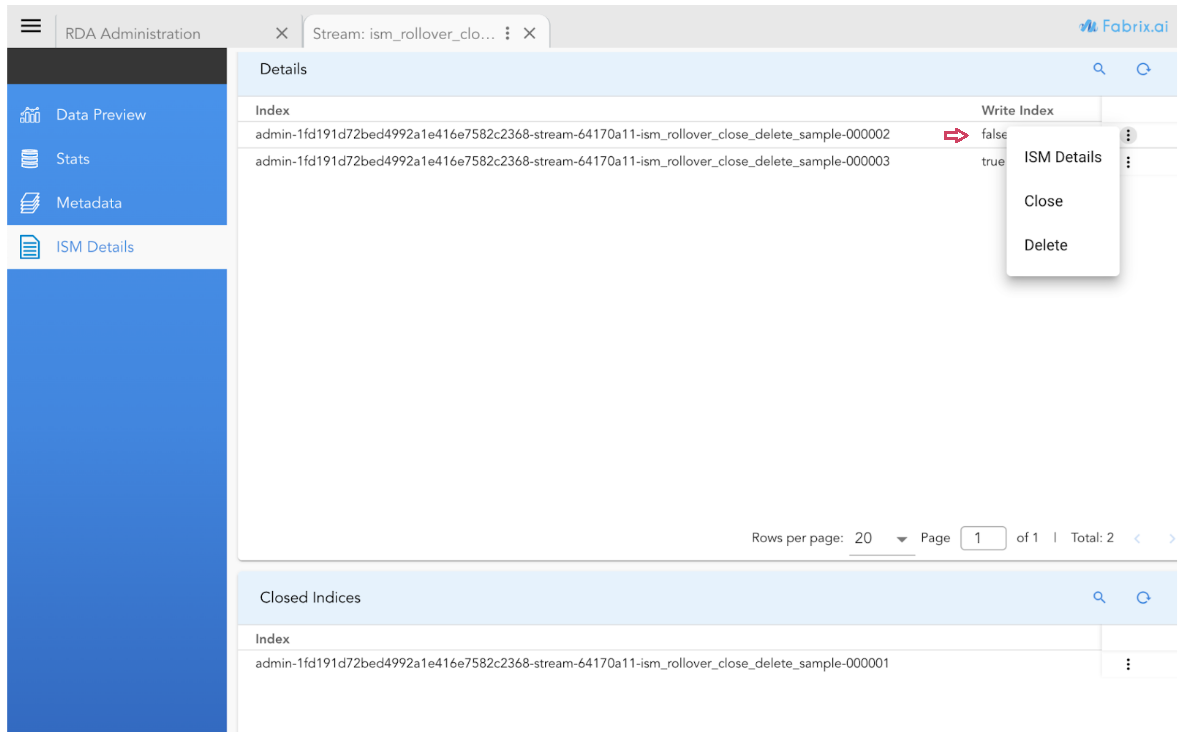
2) For the current active index, the "Write Index" setting remains true, allowing data to be written to it.

3.2.4 Actions for Closed Indices
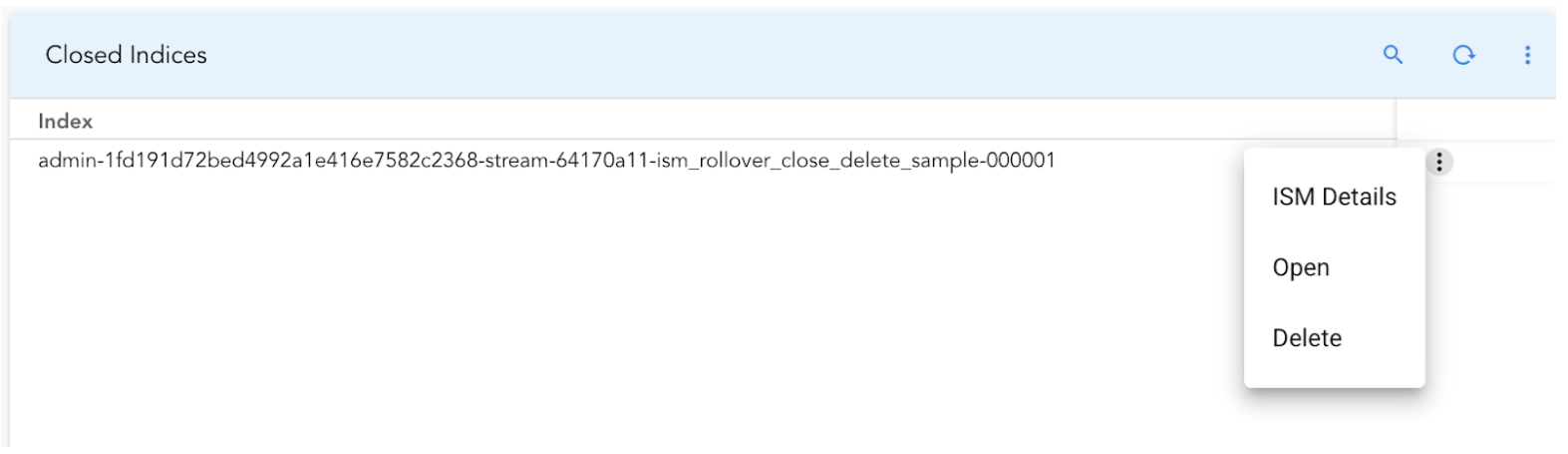
3.3 Rollover and Snapshot
-
The snapshot option in OpenSearch's ISM policy is a powerful tool for data backup and recovery.
-
It allows user to create reliable backups of the indices, ensuring that users can restore the data when needed.
-
Below is an example demonstrating how to include the 'snapshot' action in your ISM policy:
{
    "ism": {
        "rollover": {
            "min_size": "60gb",
            "min_index_age": "7d"
        },
        "snapshot": {
            "min_index_age": "90d"
        },
        "snapshot_repository": "test_repo"
    }
}
Note
To select the 'snapshot' option within an ISM policy, you must specify both 'rollover' and 'snapshot', as demonstrated in the example.
3.3.1 Explanation of ISM Setting
-
Rollover Action
- Triggers a rollover when an index reaches 60GB in size OR is 7 days old (whichever occurs first).
- Creates a new index, and subsequent writes will go to this new index.
- Transitions to the next stage after rollover.
-
Snapshot Action
- When the rolled-over index is 90 days old, a snapshot of the index is taken, and the index is subsequently deleted to free up resources.
-
Snapshot Repository
- Defines where your snapshots will be stored.
-
Possible storage options include:
- Shared file system
- Amazon S3 (Minio)
- Azure Storage
Note
The snapshot_repository must be configured prior to using the snapshot feature to ensure snapshots are stored correctly.
For detailed guidance on how to configure supported repositories, refer to this OpenSearch documentation.
{
    "ism": {
        "rollover": {
            "min_size": "60gb",
            "min_index_age": "7d"
        },
        "snapshot": {
            "min_index_age": "90d"
        },
        "snapshot_repository": "test_repo"
    }
}
3.3.2 Enhanced ISM Details Page
-
For ISM-based PStreams, the ISM Details page has been enhanced to display more comprehensive information about index states and snapshot status.
-
It also provides the ability to easily restore snapshots directly from the interface, simplifying recovery and backup management.
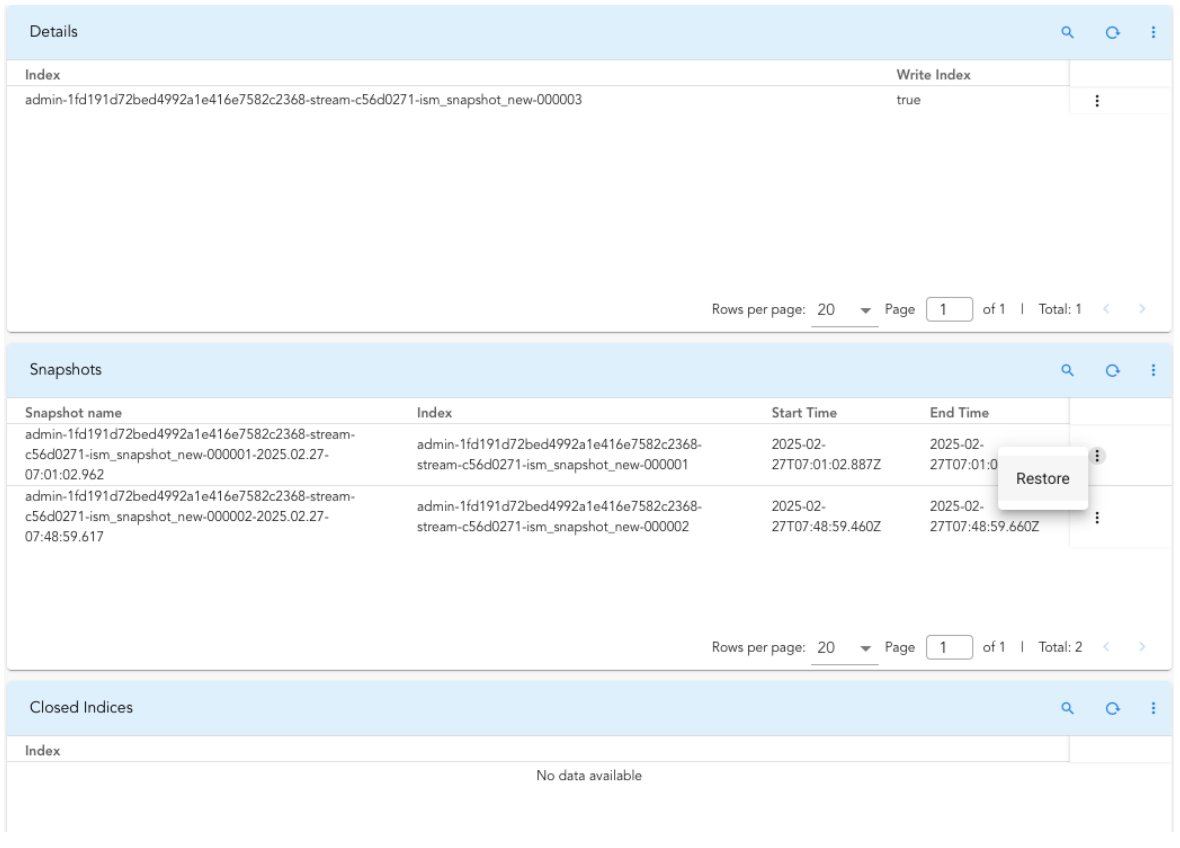
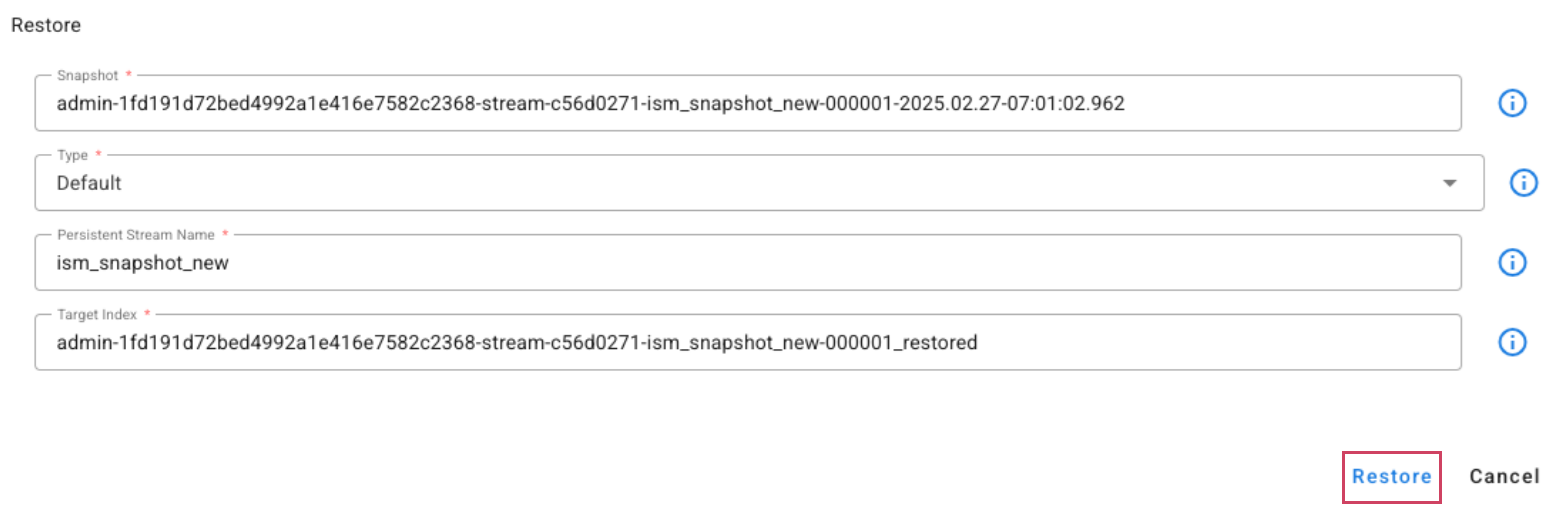
When the Type is set to Default, the snapshot will be restored to a new index named [index_name]_restored and will be added to the same alias as the original index.
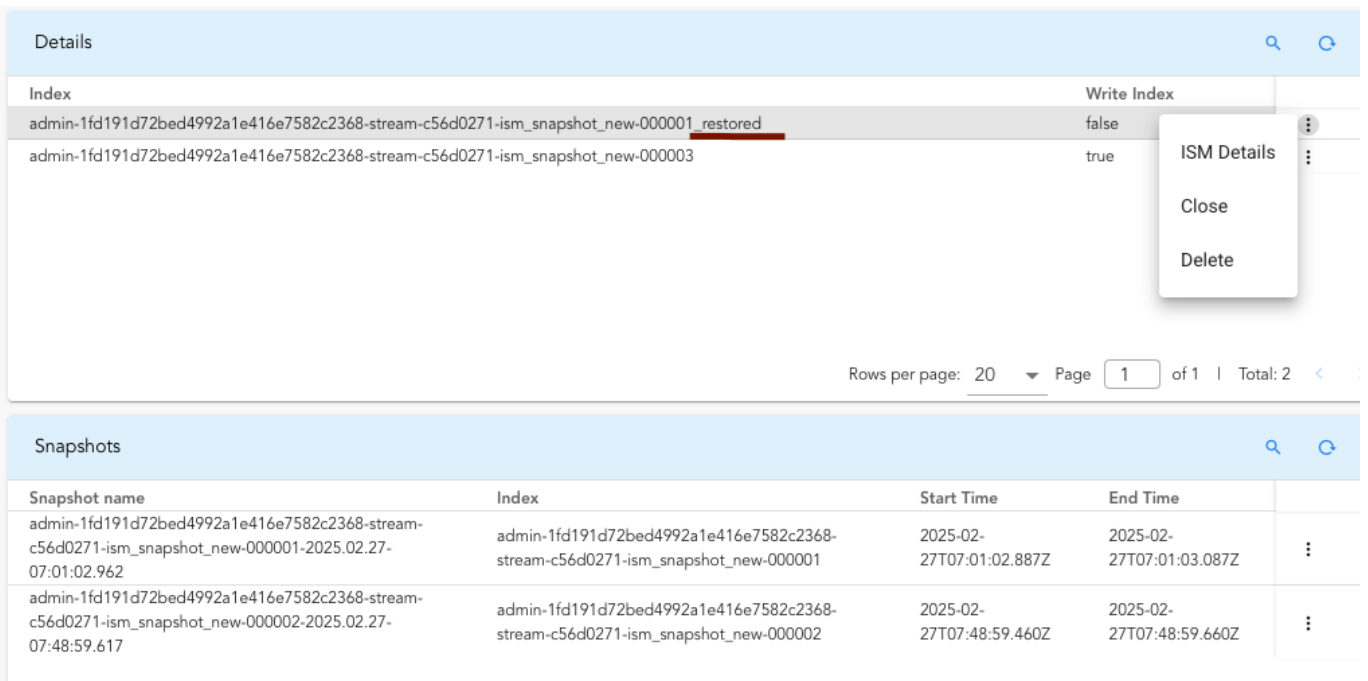
Note
The restored index will no longer be managed by the ISM policy. If the restored index is no longer required, the user must manually delete it using the Delete action.
Clicking on the ISM details for the restored index will display information similar to.
{
    "admin-1fd191d72bed4992a1e416e7582c2368-stream-c56d0271-ism_snapshot_new-000001_restored": {
        "index.plugins.index_state_management.policy_id": null,
        "index.opendistro.index_state_management.policy_id": null,
        "enabled": null
    },
    "total_managed_indices": 0
}
Note
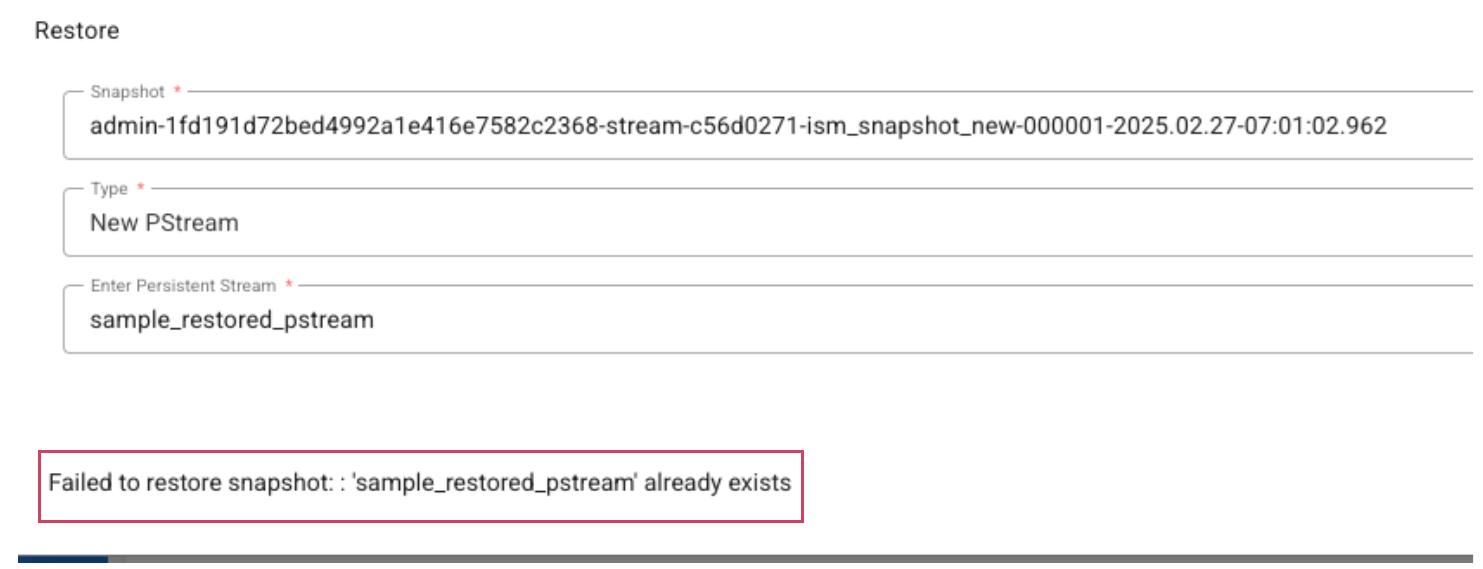
Restoring the index to the same index name is not supported. If the user attempts to restore the snapshot again to the same default index, they will encounter an error similar to the following
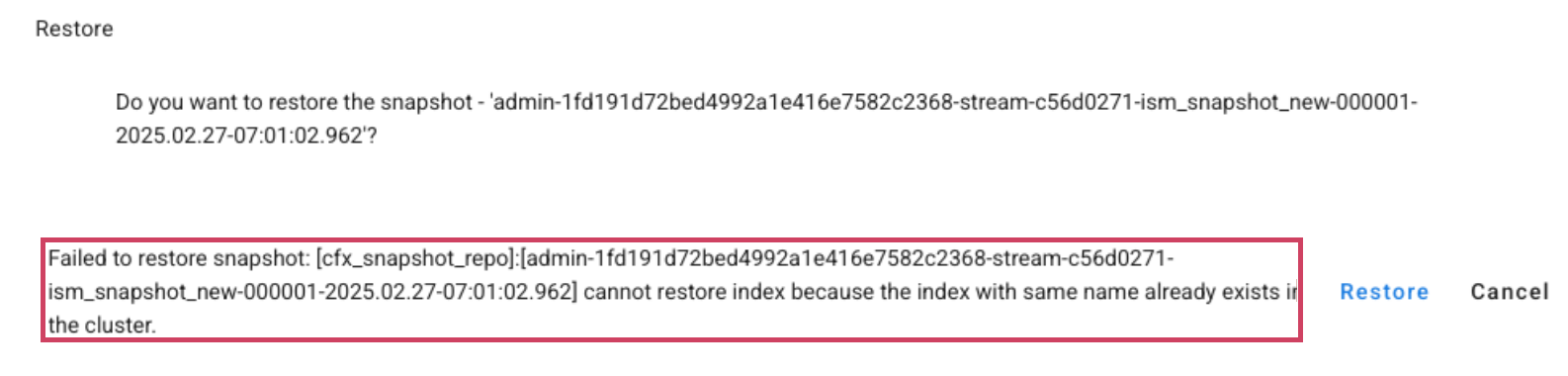
- To restore to a new pstream, select New Pstream as the Type and specify a name for the new pstream.
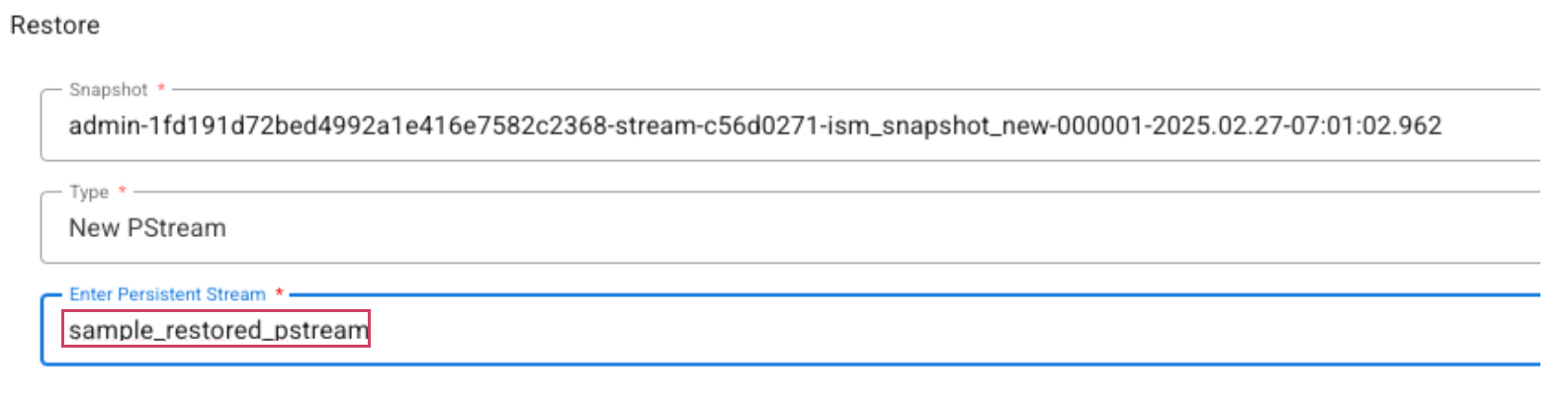
- If user specifies the name of an existing pstream, an error message will be displayed as shown below.
3.4 Sample ISM Policy for Common Use-Case
Goal: Retain documents for at least 90 days and the active index should be rolled over either when the index is at least 30 days old or the total primary shard size is at least 90GB (i.e., approximately 30GB per primary shard as we default the number of shards per index to 3)
Recommended ISM Settings
{
  "ism": {
    "rollover": {
      "min_index_age": "30d",
      "min_size": "90gb"
    },
    "delete": {
      "min_index_age": "120d"
    }
  }
}
The above settings ensures
-
Index rolls over after 30 days
-
The index lives for 120 days total
-
So any document inside it (even one on day 29) lives for at least 90 days
3.5 Common ISM Policy Mistakes and Best Practices for ISM based Pstreams
1. Rollover Too Frequently Without Size Check
Why it can be problematic
-
Creates a new index every day even if the current index is tiny.
-
Leads to too many small shards (shard explosion).
-
Increases overhead on cluster state and search performance.
Recommended Approach
Note
Combining a time limit with size ensures index growth is capped both in time and volume, maintaining optimal performance.
2. Setting a Large min_size Without a Time Limit
Why it can be problematic
-
If your data ingestion rate is low, the index may never reach 300GB.
-
Leads to indexes that keep growing indefinitely, resulting in massive shards.
-
Impairs search and recovery performance.
Recommended Approach
3. Combining a time limit with size is not always ideal especially in scenarios with irregular or low data ingestion.
Why it can be problematic
- If data ingestion rate is low or irregular, it creates many small, inefficient indices, which leads to indexes that keep growing indefinitely, resulting in massive shards.
Recommended Approach
- In such cases, relying only on
min_sizealone is efficient
3.6 Limitations
The ism option needs to be provided when the pstream is first created. Changing non-SM to ISM based pstream and vice versa is not supported.
retention_days option is ignored for ism policy based pstreams.
4. Data Rollup
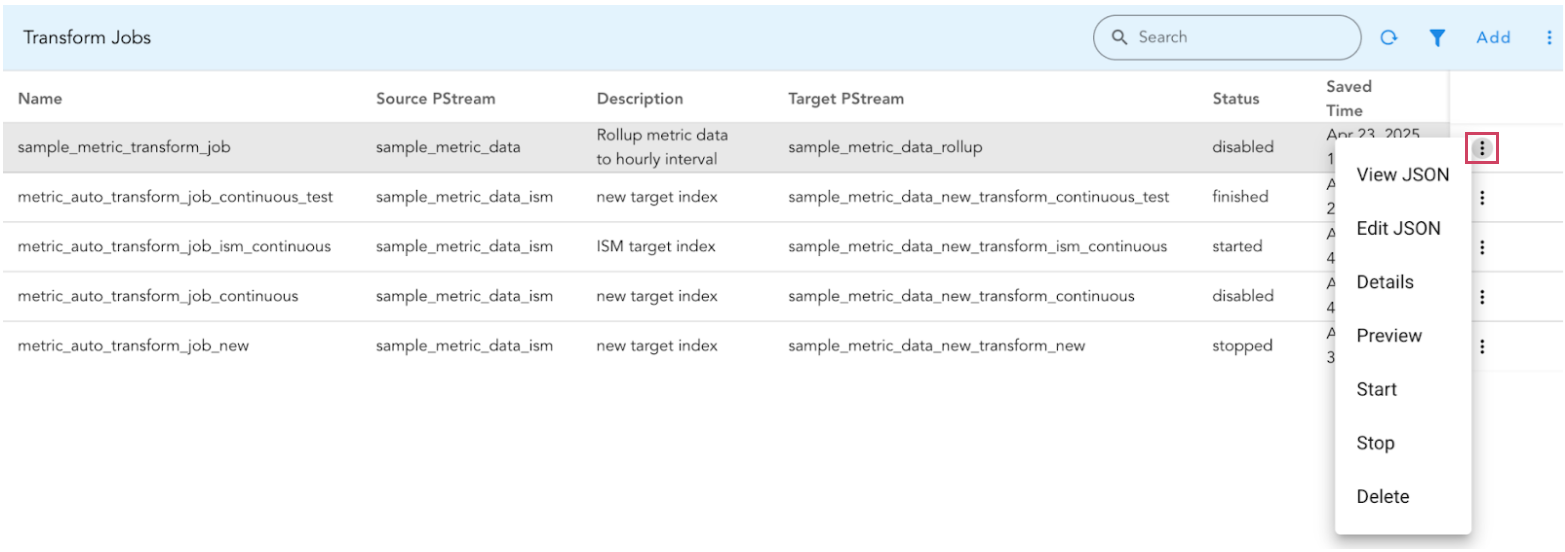
Rollup is crucial when dealing with large volumes of metrics data, in particular, when querying and aggregating over billions of raw metric data points. To achieve this, we introduced support for transform jobs that generate a persistent stream with pre-aggregated and structured information, greatly enhancing the speed of analysis and visualization.
To Manage Transform Jobs from UI, Go to Configuration -> RDA Administration -> Persistent Streams -> Transform Jobs
{
  "name": "sample_metric_transform_job",
  "description": "Rollup metric data to hourly interval",
  "continuous": true,
  "schedule": {
    "interval": {
      "period": 1,
      "unit": "Days"
    }
  },
  "query": "device is 'active'",
  "interval": "60m",
  "source": {
    "stream": "sample_metric_data"
  },
  "target": {
    "stream": "sample_metric_data_rollup",
    "ism": {
      "rollover": {
        "min_size": "60gb",
        "min_index_age": "30d"
      },
      "delete": {
        "min_index_age": "90d"
      }
    }
  },
  "group_by": [
    "device",
    "desc"
  ],
  "copy_fields": [
    "ip"
  ],
  "aggs": [
    {
      "field": "m1"
    },
    {
      "field": "m2",
      "func": "min"
    },
    {
      "field": "m3",
      "func": "avg"
    }
  ]
}
Core Configuration
Parameter Name |
Description |
|---|---|
name |
This is the unique identifier for your transform job. |
description |
An optional field for explaining the transform job's goal. |
continuous |
Determines if the transform job runs continuously, processing new data as it arrives. When true, it uses the defined schedule to periodically check for new data. Default: false. |
schedule |
Defines when the transform runs. • interval- Specifies the recurring interval. • period- Numerical value of the interval. • unit- Unit of time for the interval (e.g., "Seconds", "Minutes", "Hours", "Days"). • start_time- (Optional) Unix epoch timestamp (milliseconds) for the initial run. |
query |
Optional CFXQL query string to filter documents from the source stream before transformation. Only matching documents are processed. |
interval |
It defines the time window for aggregation, grouping source documents with timestamps within the same interval. For instance, setting it to "60m" aggregates data into 60-minute (hourly) buckets. Supported units include minutes (m), hours (h), and days (d). For example, 30m represents a 30-minute interval. |
source |
Defines the data source to be transformed. stream- Name of the source pstream data. timestamp- (Optional) DateTime field in documents used for rolling data based on the interval. |
target |
Defines the destination of transformed data. |
stream |
The name of the pstream. Both the source and target pstreams must reside on the same OpenSearch cluster. If the target pstream does not already exist, it will be automatically created within the same cluster as the source. This ensures that both are either within the platform's OpenSearch or on an external OpenSearch instance. Enabling automatic creation of the target pstream is recommended, as it guarantees proper generation of all field mappings. |
ism (Optional) |
Configuration for ISM based Pstreams. It is recommended to use ISM based PStreams to manage metrics data. |
group_by |
Array of fields used to group data before applying aggregations; creates separate documents for each combination within each interval. |
copy_fields |
If a user wishes to include fields from the source pstream that have a one-to-one relationship with the unique group key in the target pstream (e.g., a device always associated with the same IP address), it's not recommended to include these fields in the group_by section. Doing so can increase the number of internal buckets, potentially affecting performance negatively. Instead, for each unique group within a time interval, the value of these fields from one of the source documents in that group will be included. For example, if a specific "device" always has the same "ip," setting this field to ["ip"] will automatically use the "ip" value from the first source document in that group. |
aggs |
An array defining the aggregations to perform on the various metric data fields within each time interval. • field- The field in the source documents to aggregate. • func- (Optional): The aggregation function. Supported aggregations are - sum, min, max, avg & value_count. Default is avg |
Note
The transformation process also creates new fields in the target stream to hold the results of each aggregation. These fields are named using the pattern [field_name]__[func]. For example, the original field m1 will result in fields such as m1,m1__sum, m1__min etc in the target pstream.
Transform Job Actions
Actions |
Description |
|---|---|
Edit JSON |
Only the updates to the following fields are supported: schedule and description. Avoid updating unless the state/status is disabled or stopped. |
Details |
Use this action to view the current job’s status and all the job’s details. |
Preview |
Shows a preview of what the transformed data in the pstream would look like. We recommend checking this preview before running your job to ensure it looks correct. |
Start |
Initiates the transform job with this action. Newly created transform jobs are initially disabled. After reviewing the sample data via the Preview action, use this to start the job. |
Stop |
Use this to stop the transform job. |
Delete |
Use this to delete the transform job. |
A transform job can be in one of several states that reflect its current activity or health. Here are the main transform job states you'll encounter.
Transform Job States
Job State |
Description |
|---|---|
started |
• The transform job is actively running. • It’s processing data from the source pstream and writing to the target pstream. • If it’s a continuous job, it will keep polling the source index for changes. |
stopped |
• The transform job is not running. • No data is being transformed or written. • You can update the transform job in this state. |
failed |
• The job encountered a critical error and couldn’t be completed. • Usually requires manual intervention or a fix before restarting. |
init |
• The job is initializing — loading metadata, validating settings, preparing to start. • Usually a very brief state right before started. |
indexing (Sometimes considered a sub-state of started) |
• Specific to continuous transforms. • Indicates it’s actively indexing a new batch of transformed data into the destination pstream. |
finished |
• For one-time transforms, this means it ran successfully and completed. • The job doesn’t restart unless triggered manually. |
The following two are not actual states but configuration flags on the transform job that determine whether it should automatically start when OpenSearch is restarted or the job is (re)created.
Auto-Start Configuration Flags
Configuration Flag |
Description |
|---|---|
enabled |
• The job is scheduled to run automatically (depending on schedule). • If the job is stopped or the node restarts, OpenSearch will try to start it again. • This will be the initial state when you start the job until it’s actually time to run. |
disabled |
• This is the state when the transform job is first created. • The job will not start automatically. • You have to start it manually. • You can update the transform job in this state. |