Versioning
1. Versioning in Toolsets and Prompt Templates
Versioning is a feature that helps you track and manage changes made to toolsets and prompt templates over time. Every time a modification is made and saved, a new version is created automatically (for example: v1, v2, v3, and so on). This ensures that previous configurations are not lost and can be referenced whenever needed.
Each version represents a snapshot of the toolset or prompt template at a specific point in time. This is especially useful when multiple updates are made, as it allows users to review, compare, or revert changes if required.
2. Actions
On the Toolsets or Prompt Templates page you can create new definitions and manage existing ones:
- Add — Use Add on the page to create a new toolset or prompt template.
- Edit — For an existing row, open the actions menu (⋮) and choose Edit to change that item.
- View — Open a read-only view of an existing item from the same menu.
- Delete all versions — Remove every version of that toolset or prompt template.
- Version History — See all saved versions for that item.
- View Difference — Compare versions.
From the row actions menu (⋮) for an existing toolset or prompt template you can access these options (Add is separate, at the page level).
2.1 Add
Add starts the flow to define a new toolset or prompt template. After you save, versioning applies the same way as for edits: each save can create a new version or update the current one, depending on Version handling when you change the item later.
2.2 Edit
Edit opens the editor for an existing toolset or prompt template. Under Version handling, Create New Version is selected by default, so a normal save usually adds a new version. Only if you select Update Current Version and then save will the current version be overwritten instead of creating a new one.
2.3 View
View opens a read-only view of the toolset or prompt template so you can inspect the configuration without changing it.
2.4 Delete all versions
Delete all versions removes every saved version of that toolset or prompt template. Use this only when you intend to delete the item and all of its history.
2.5 Version History
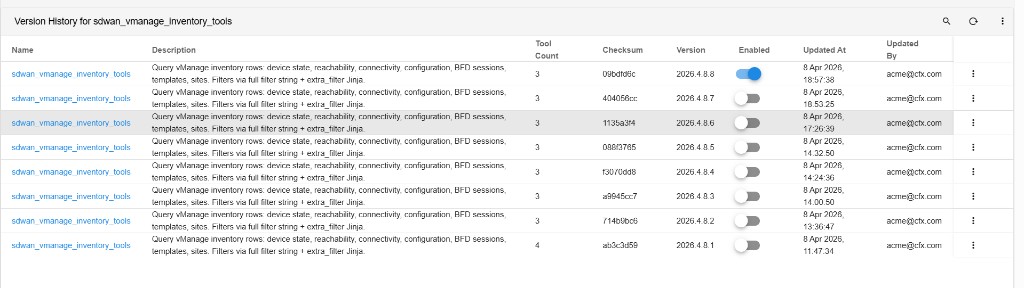
The Version History option provides a detailed list of all previously saved versions.
- It displays information such as version number, update time, tool count, and status (enabled/disabled).
- Users can easily identify which version is currently active.
- It helps in auditing changes and understanding how the toolset or prompt template has evolved over time.
2.6 View Difference
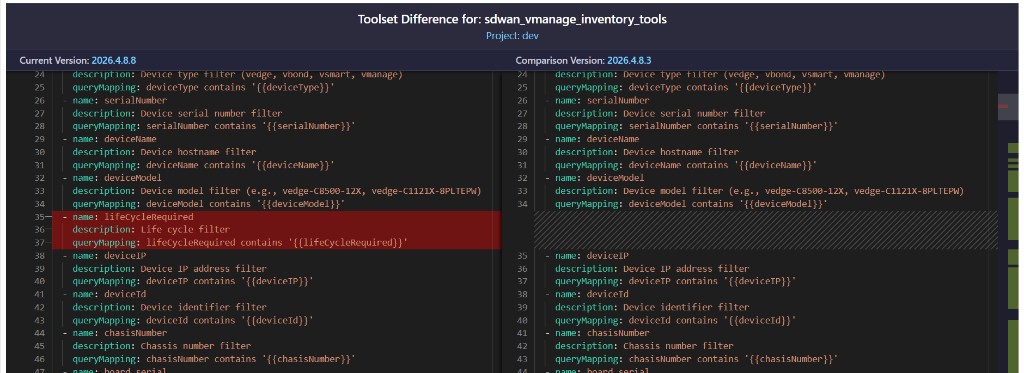
The View Difference feature allows users to compare the current version with any previous version.
- You can select a specific version to compare against the current one.
- It highlights the differences between the two versions, making it easy to identify what has been added, removed, or modified.
- This is particularly helpful for debugging, reviewing updates, or validating changes before deployment.
After you choose versions and confirm, the View Difference shows a side-by-side diff of the configuration. Added, removed, or changed lines are highlighted so you can see exactly what differs between the current version and the one you selected.