Async tool call
In Fabaio, the LLM often calls tools (for example, to fetch alerts or run a pipeline). Some tools can take a long time—think tens of seconds or several minutes.
This section explains async (asynchronous) tool mode: what it does, how to enable it in a toolset, what you see in the chat, and how it differs from normal (blocking) tool calls. Async mode is an optional setting on each tool.
1. Turn async mode on for a tool
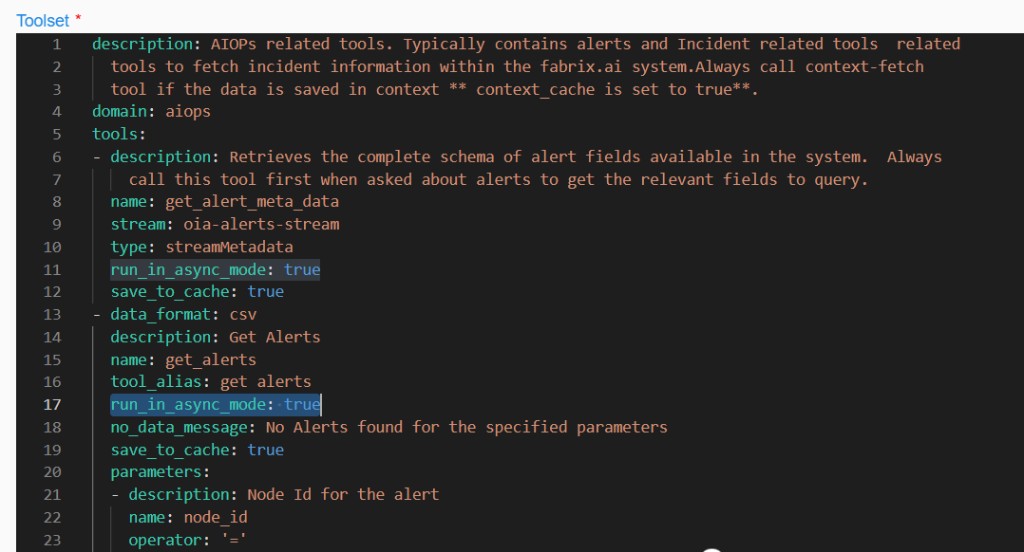
You can run any tool in async mode by adding one line to that tool’s definition in the toolset YAML:
Place it alongside the other fields for that tool (for example next to type, description, or save_to_cache). Each tool is configured separately: only tools where you set run_in_async_mode: true run in the background. All other tools keep the usual behavior.
The screenshot below shows an AIOps toolset where two tools use async mode: get_alert_meta_data and get_alerts.
2. What happens when you ask Fabaio to run those tools
When you send a prompt such as “get alerts”, the model follows your request and starts calling tools in the usual way.
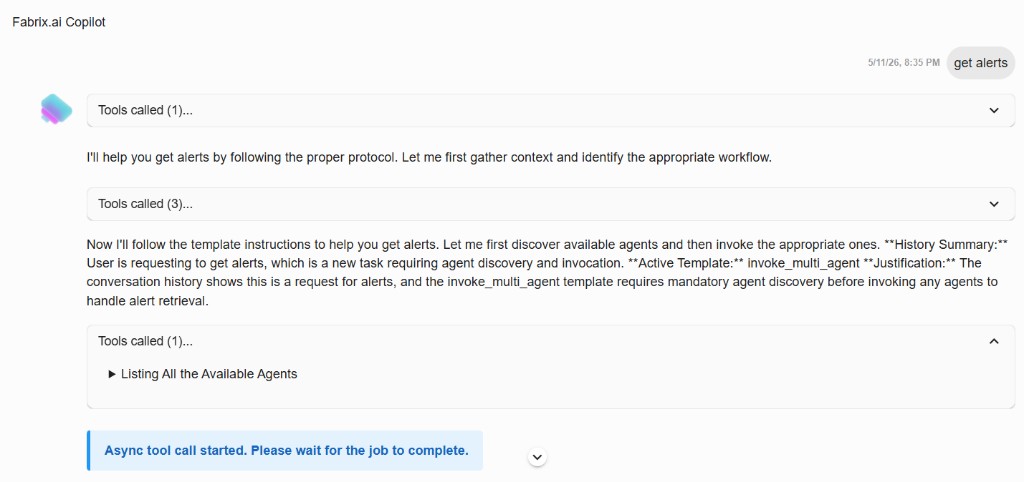
As soon as it invokes a tool that has run_in_async_mode: true, you do not wait in silence for the full result. The UI shows a clear status message—for example that an async tool call has started and you should wait for the job to finish.
You may also see more detail in the tool calling , such as a JSON payload with status: async_started, a job id, and a short message that the tool is running in the background.
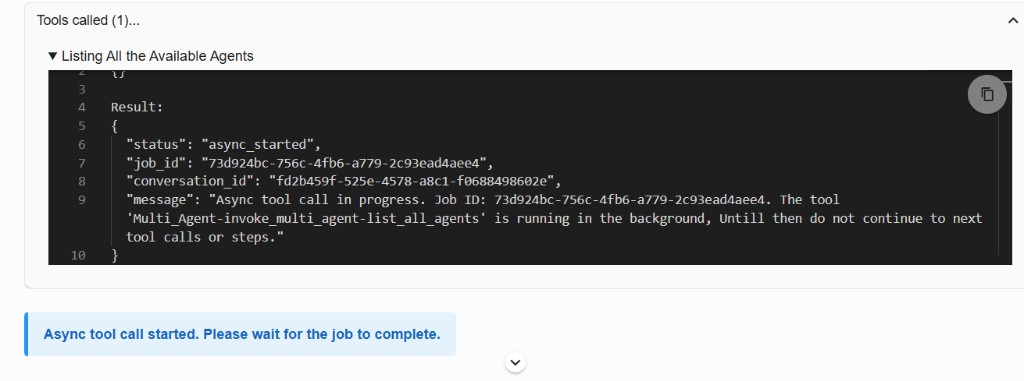
That feedback matters: you know the long step has been queued or is running on the server, not stuck.
3. When the async job finishes
When the async tool completes, its result appears under Tools called in the conversation—for example the full alert data for get alerts.
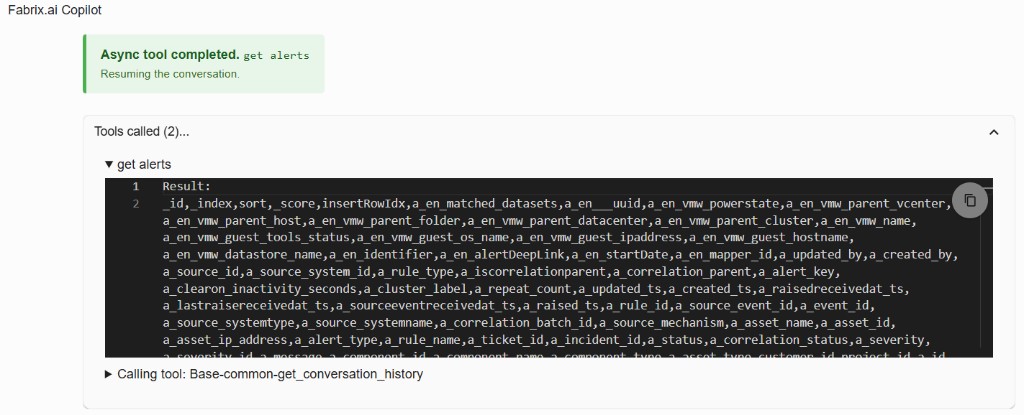
After any async tool completes, the LLM runs the get_conversation_history tool (this is made mandatory in the backend). This step refreshes what the model “sees” so it knows which tools already ran in the conversation, and what to do next to finish the user’s task.It is part of the async completion flow.
4. Why async mode exists (blocking vs non-blocking)
4.1 Older behavior: you could feel “stuck”
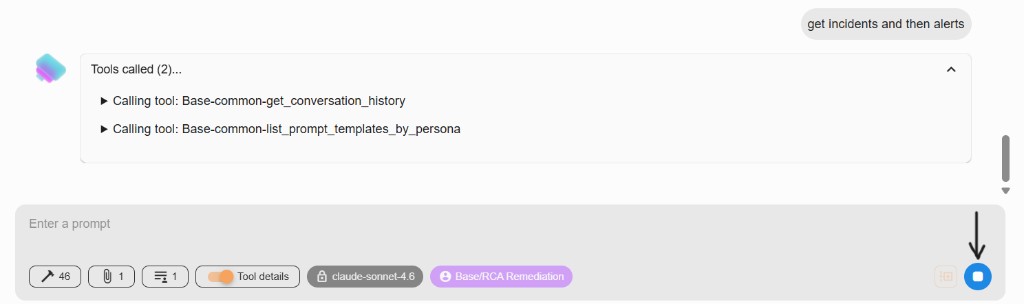
Previously, while the assistant was calling tools and waiting for them to finish, the experience could feel blocked. You often had to wait until all tool calls for that turn finished and the model returned a final answer before you could comfortably send another prompt or do something else in the flow.
The next image highlights the stop control while tools are still running—typical of that blocking pattern during synchronous-style waits.
4.2 With async tools: the wait does not lock you out
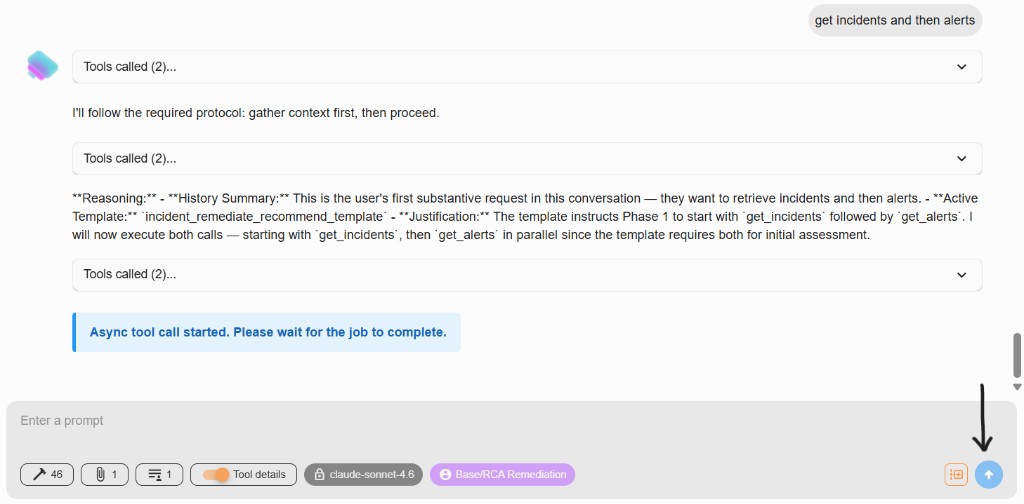
When a tool runs in async mode, there can still be a real delay (for example 30 seconds or several minutes) before that tool finishes. During that time, you are not blocked in the same way: you can send another message, start a different task, or continue working in the product while the background job runs.
Only tools configured with run_in_async_mode: true behave this way. Tools without that flag still follow the normal wait rules.
The image below points at the send control staying available while the “async tool call started” message is visible—showing you can still add another prompt while the async job is in progress.
5. Short recap
| Topic | Takeaway |
|---|---|
| Enable async | Set run_in_async_mode: true on the tools that should run in the background. |
| User benefit | Long-running steps can run without forcing you to wait idle; you can keep working or send another prompt (only for async-enabled tools). |
| First feedback | The chat shows that an async job started (banner and/or async_started style details with a job id). |
| When it ends | The tool’s actual result shows under Tools called; then the flow continues. |
| History refresh | After async completion, get_conversation_history runs automatically so the LLM can plan the next steps. |