Elicitation
Elicitation is how the LLM gathers structured information from the user during a conversation. The LLM can invoke tools that render questions, suggested answers (radio buttons), and an optional custom text field, then continue once you submit.
To enable elicitation on a tool, set supports_elicitation: true and define elicitation_config with the fields you want the UI to show (for example radio buttons for choices and a text field for “none of the above”).
Example tool with elicitation
The following ask_user_question tool is a example that supports elicitation. Radio options come from the LLM’s options parameter; the user can pick one option or type a custom answer.
- name: ask_user_question
  type: template
  templateType: jinja
  template: '{% if user_choice %}{{ user_choice }}{% elif user_answer %}{{ user_answer }}{% endif %}'
  description: >
    Ask the user a clear, specific question. The LLM should generate the most likely
    user answers and pass them as 'options' in a JSON list.

    Each option should be a complete, descriptive sentence or phrase that directly
    answers the question, not a single-word label. The options should be specific to
    the question being asked and should represent realistic choices the user might
    select.

    These options are shown as radio buttons. If none of the suggested options match,
    the user can type a custom answer in the text field.
  supports_elicitation: true
  elicitation_config:
    message:
      template: "{{ question }}"
      template_type: jinja
    timeout: 200
    fields:
      - field_name: user_choice
        field_type: string
        control_type: RADIO_BUTTON
        description:
          template: "Suggested answers (select one if it matches):"
          template_type: jinja
        enum_values:
          template: "{{ options | tojson }}"
          template_type: jinja
        required: false

      - field_name: user_answer
        field_type: string
        control_type: TEXT_FIELD
        description: "None of the above? Type your own answer here"
        required: false

  parameters:
    - name: question
      description: >
        The question to ask the user. Be specific and clear.
        Example: "What is the severity level of this alert?"
    - name: options
      description: >
        LLM's best guess at likely answer options for the given question, as a JSON list.
        Each option should be a descriptive sentence or phrase instead of a single-word label.
        Generate options based on the context and intent of the question.
        Always provide this even if unsure — give your best guess.

        Example:
        [
          "This alert appears to have minimal impact and can be monitored.",
          "This issue may affect some functionality but is not business critical.",
          "This alert is causing significant impact and should be investigated soon.",
          "This is a critical issue requiring immediate attention and escalation."
        ]
    - name: user_choice
      description: The descriptive option the user selected from the radio buttons — WILL BE ELICITED
    - name: user_answer
      description: >
        A custom answer typed by the user if none of the suggested options matched — WILL BE ELICITED
| Setting | Purpose |
|---|---|
supports_elicitation |
Turns on the elicitation UI for this tool. |
elicitation_config.message |
The question text shown to the user (Jinja template). |
fields / RADIO_BUTTON |
Renders suggested answers from options. |
fields / TEXT_FIELD |
Lets the user type a custom answer when no radio option fits. |
user_choice / user_answer parameters |
Filled by the UI on submit; the template uses whichever is set. |
How elicitation works
Elicitation supports a back-and-forth between you and the LLM: the model may run other tools, then pause on an elicitation tool until you answer, then continue with the next question or step.
A typical flow when you want to create a new agent:
- You send a prompt such as: “Hi, I’m looking to build an agent. Can you help me get started?”
- The LLM runs tool calls (for example discovery or planning tools).
- It invokes an elicitation tool such as
ask_user_questionwith a question and options generated for your context. - You select a suggested answer or type your own text and click Submit.
- The conversation records your response under the tool call, and the LLM proceeds—often with another elicitation question until it has enough detail.
The sections below follow that flow using an agent-creation example.
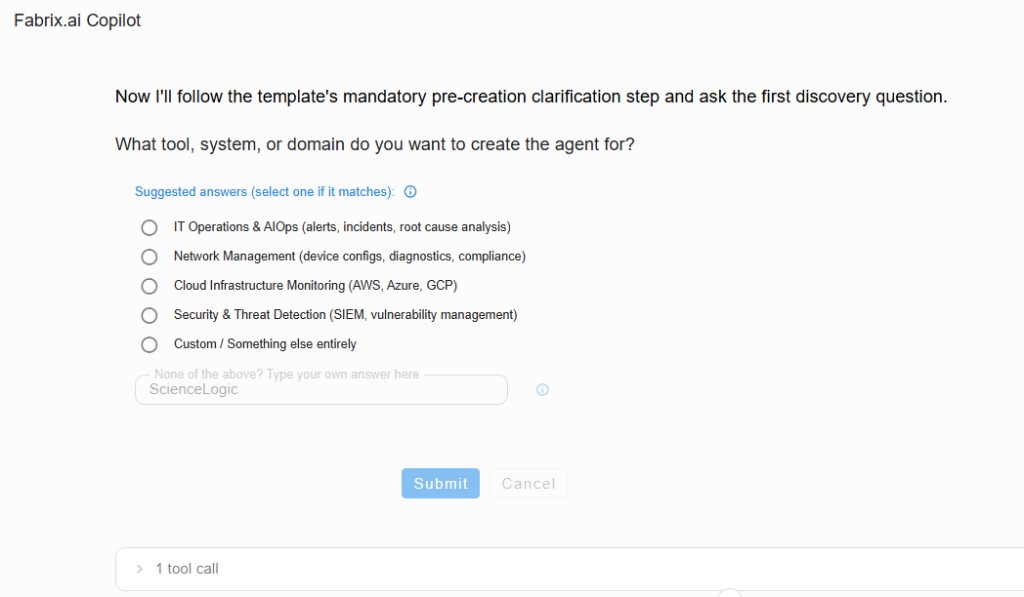
1. First question: tool, system, or domain
After initial tool calls, the assistant asks which tool, system, or domain the agent is for. Suggested answers might include IT Operations & AIOps, Network Management, Cloud Infrastructure Monitoring, or Security & Threat Detection.
If your answer is not listed, use "None of the above? Type your own answer here"—for example ScienceLogic—then click Submit.
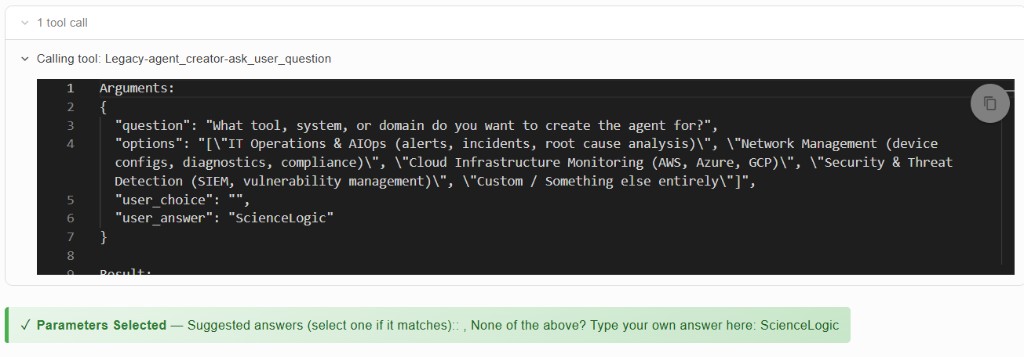
2. Your answer in the tool call
After you submit, the conversation shows the ask_user_question tool call with your inputs. The green Parameters Selected banner summarizes what was captured; expanding the tool shows user_answer (or user_choice if you picked a radio option) in the arguments.
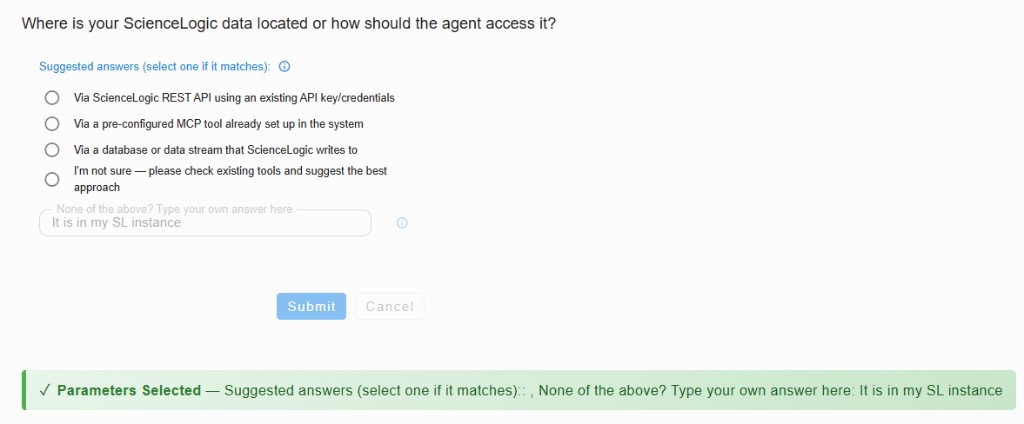
3. Next question:
The LLM may run more tools, then ask a follow-up elicitation question—for example where ScienceLogic data lives or how the agent should access it (REST API, pre-configured MCP, database, or “I’m not sure”).
Again, you can pick a suggested option or enter a custom answer such as “It is in my SL instance”, then click Submit.
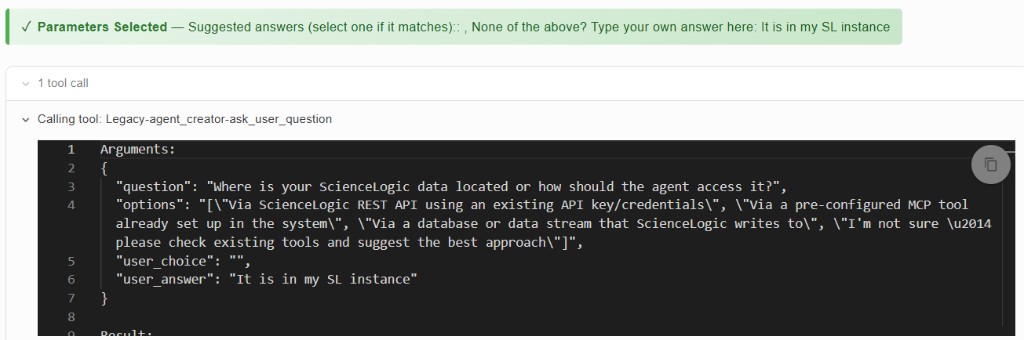
4. Follow-up answers and further questions
Each submit produces another tool call with the elicitation parameters filled in. The LLM can continue with additional questions (for example primary use case, documentation availability, or whether to check existing MCP tools) until it has what it needs to proceed.
5. Short recap
| Topic | Takeaway |
|---|---|
| Purpose | Extract structured information from the user during a conversation. |
| Enable on a tool | supports_elicitation: true plus elicitation_config with fields. |
| UI controls | RADIO_BUTTON for suggested options; TEXT_FIELD for custom answers. |
| LLM role | Supplies question and options; elicited params are user_choice and/or user_answer. |
| Flow | Tool calls → elicitation form → submit → repeat until context is complete. |